
Configure — Events & Groups
An Event is the whole show. Groups let you target specific sets of devices inside it. This page covers creating both.
Events
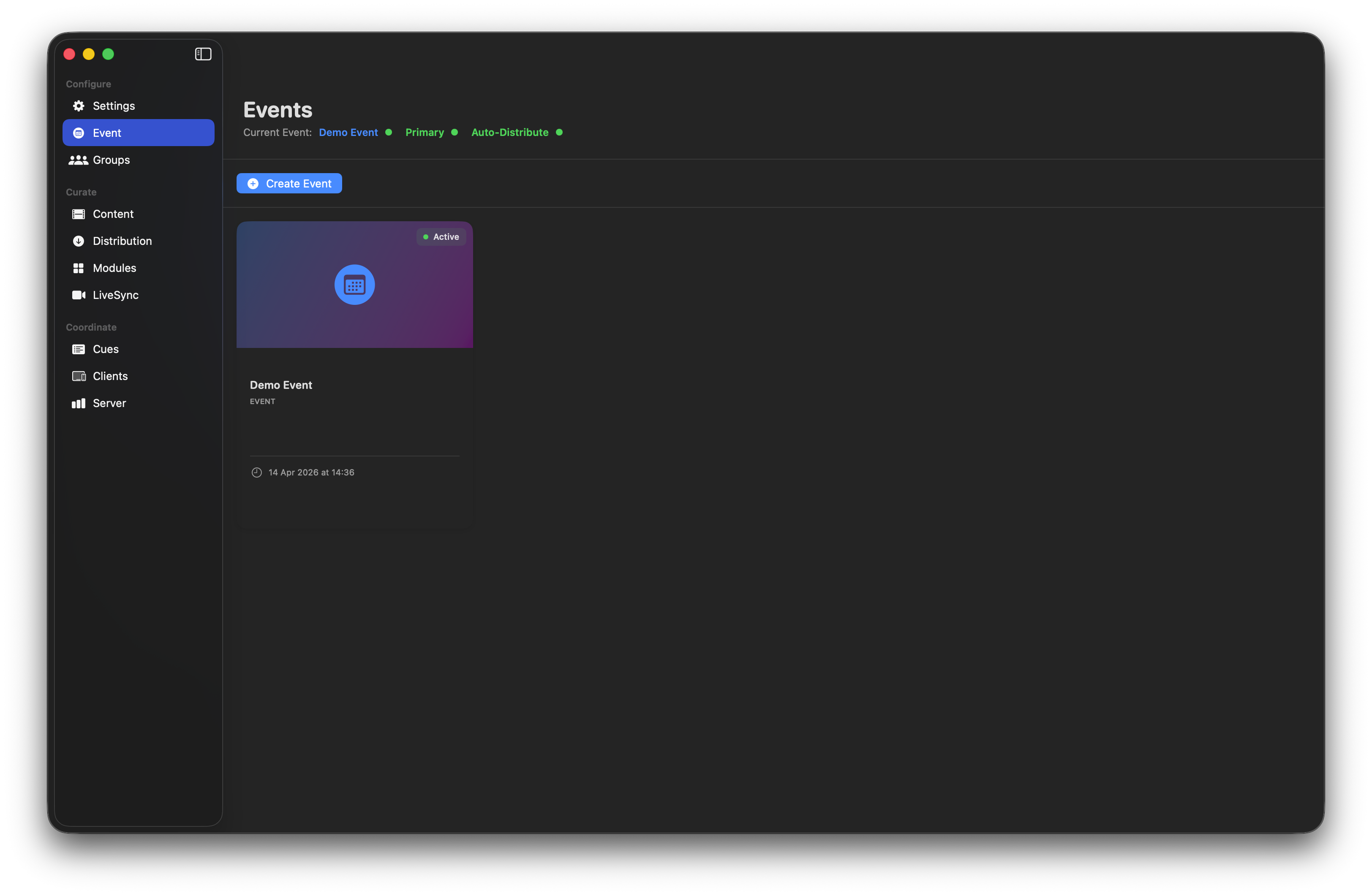
An Event is the top-level container. Only one event can be active at a time; switching between events is how you keep show A and show B separate on the same Mac.
Creating an event
Click Create Event and name it clearly (e.g. "Barclays AGM 2026" not "Event 1"). The new event isn't live yet — click Activate on its card when you want to switch to it.
Editing an event
Hover the event card and click Edit. You can change the name and — most usefully — set a Background Image.
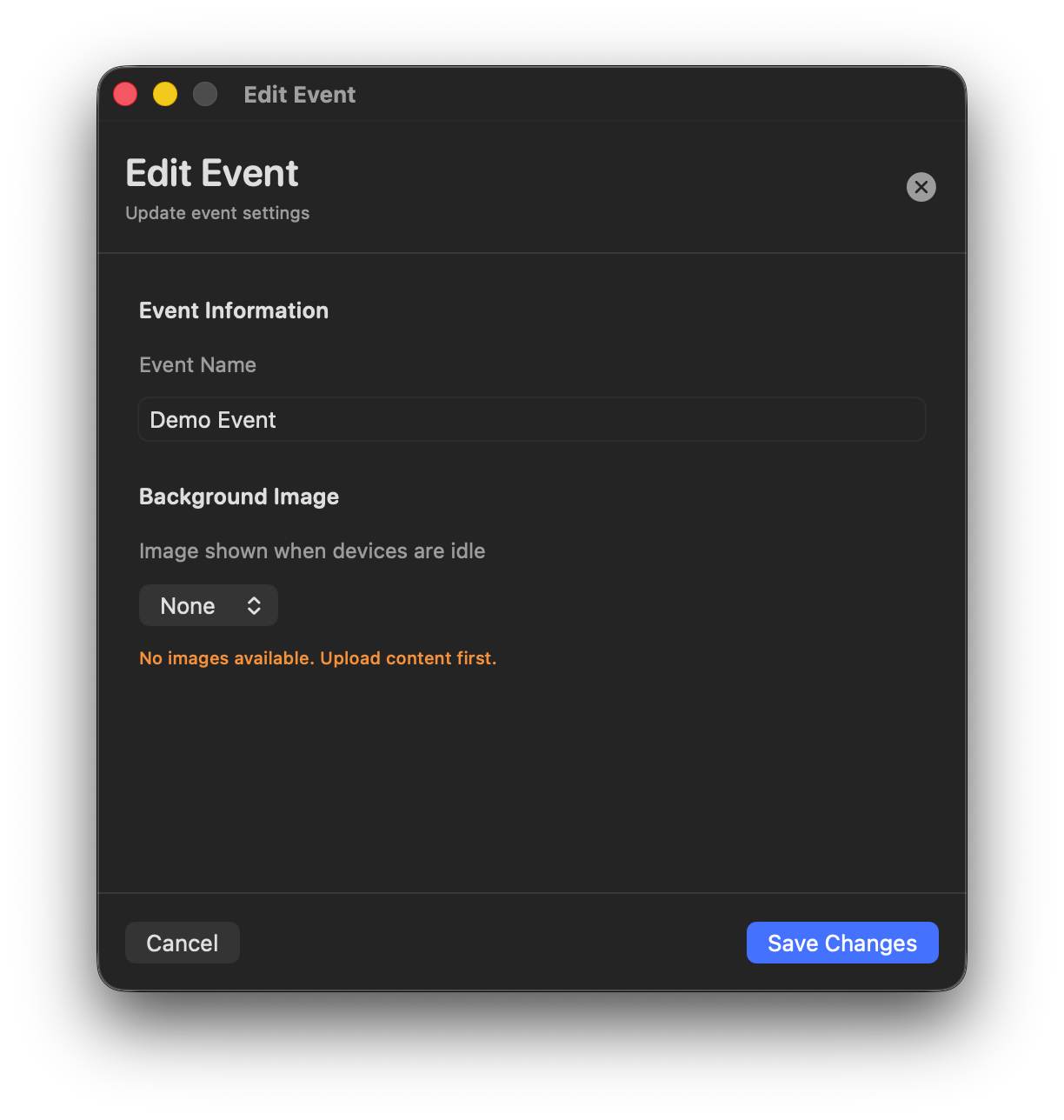
If you haven't uploaded any images yet, the background picker is empty.
Upload an image on the Content page first, then choose it here:
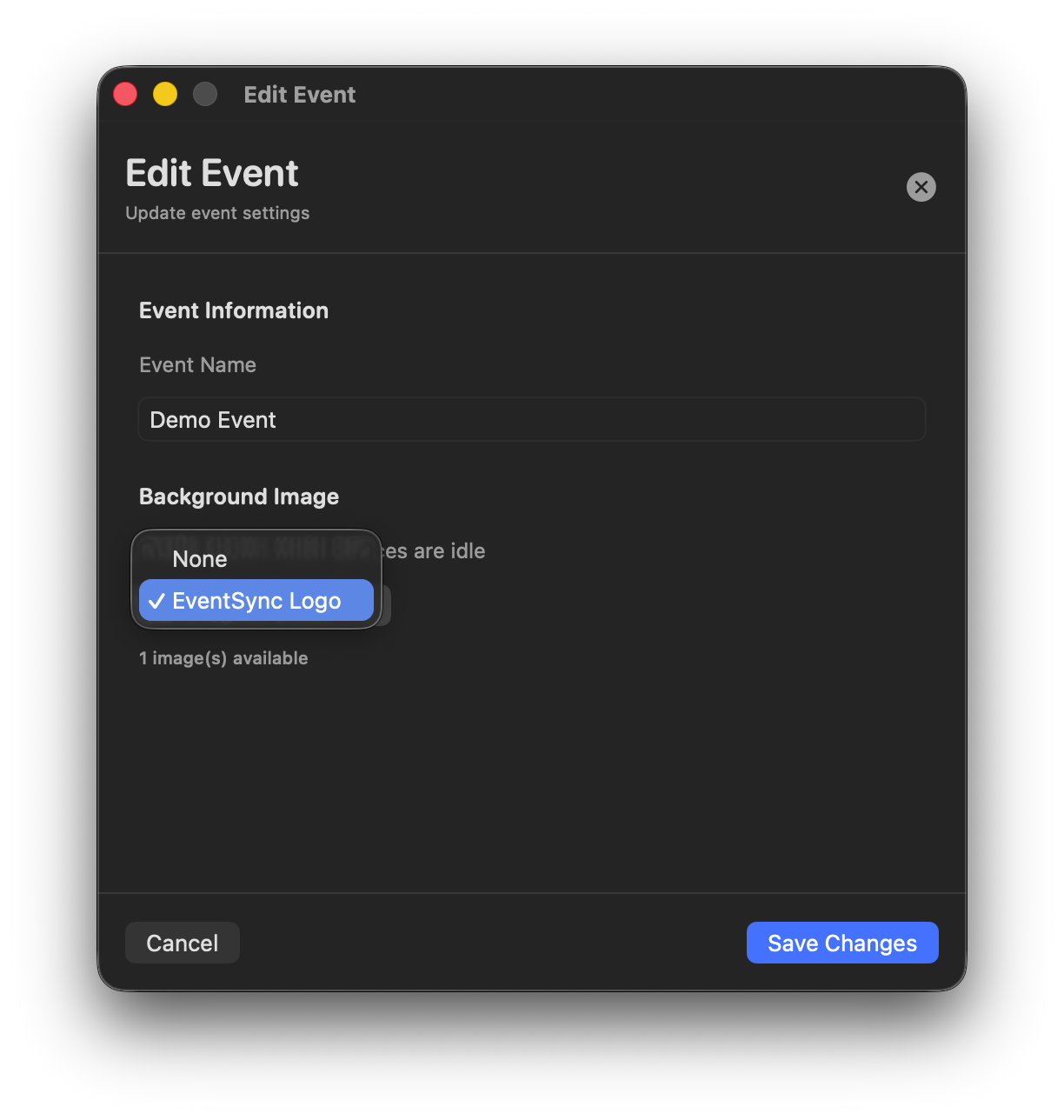
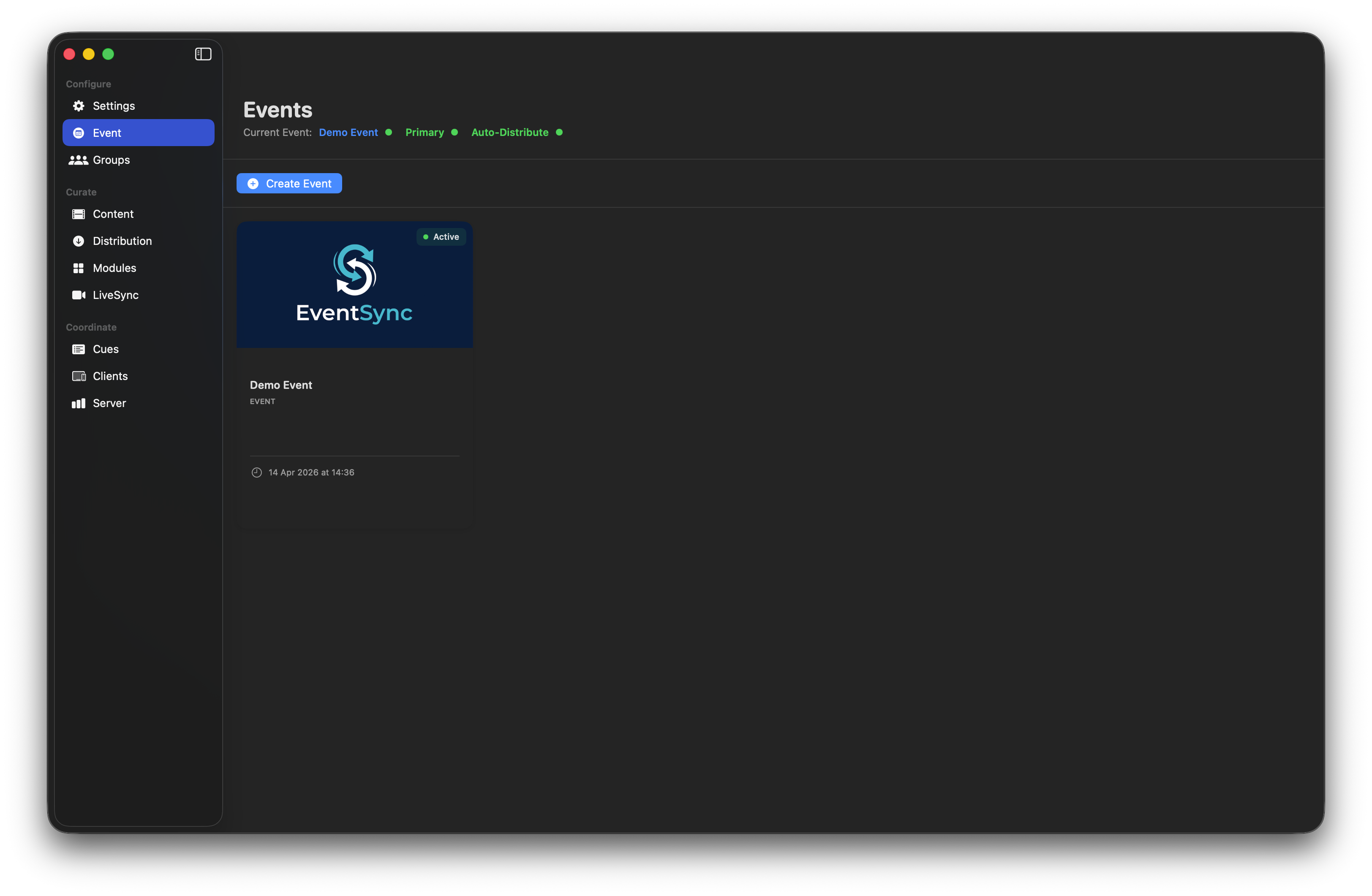
The chosen image appears on idle devices between cues — a blank slate for your branding instead of black.
Groups
A Group is a set of devices that behave identically — typical groups for a gala: Table 1, Table 2, …, LED Wall, Backstage Monitor, Operator iPad. You define your groups on this page, then each device is assigned to one either automatically (via Auto-Join), from the Clients page on the Dashboard, or by choosing a group on the device itself.
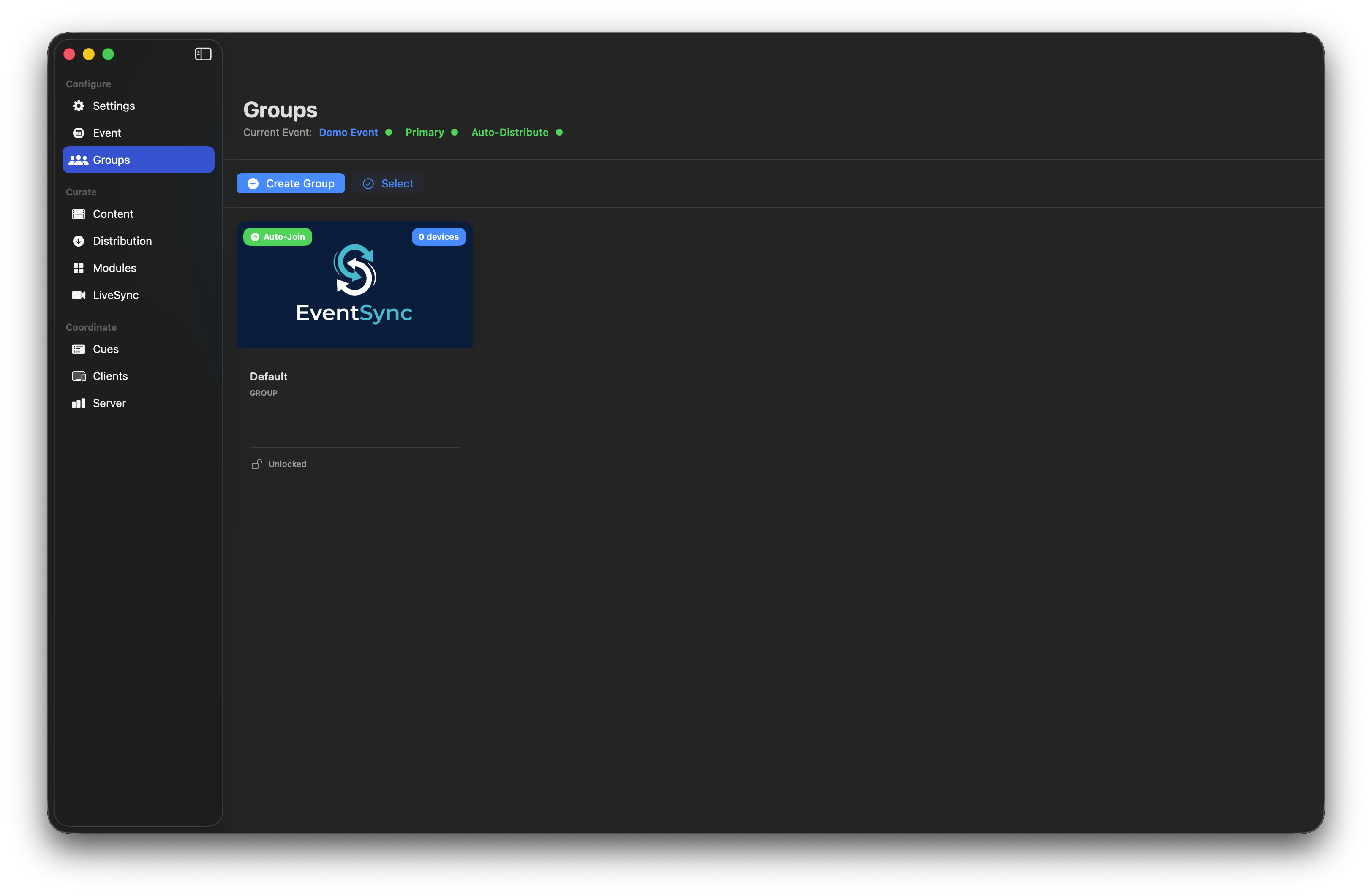
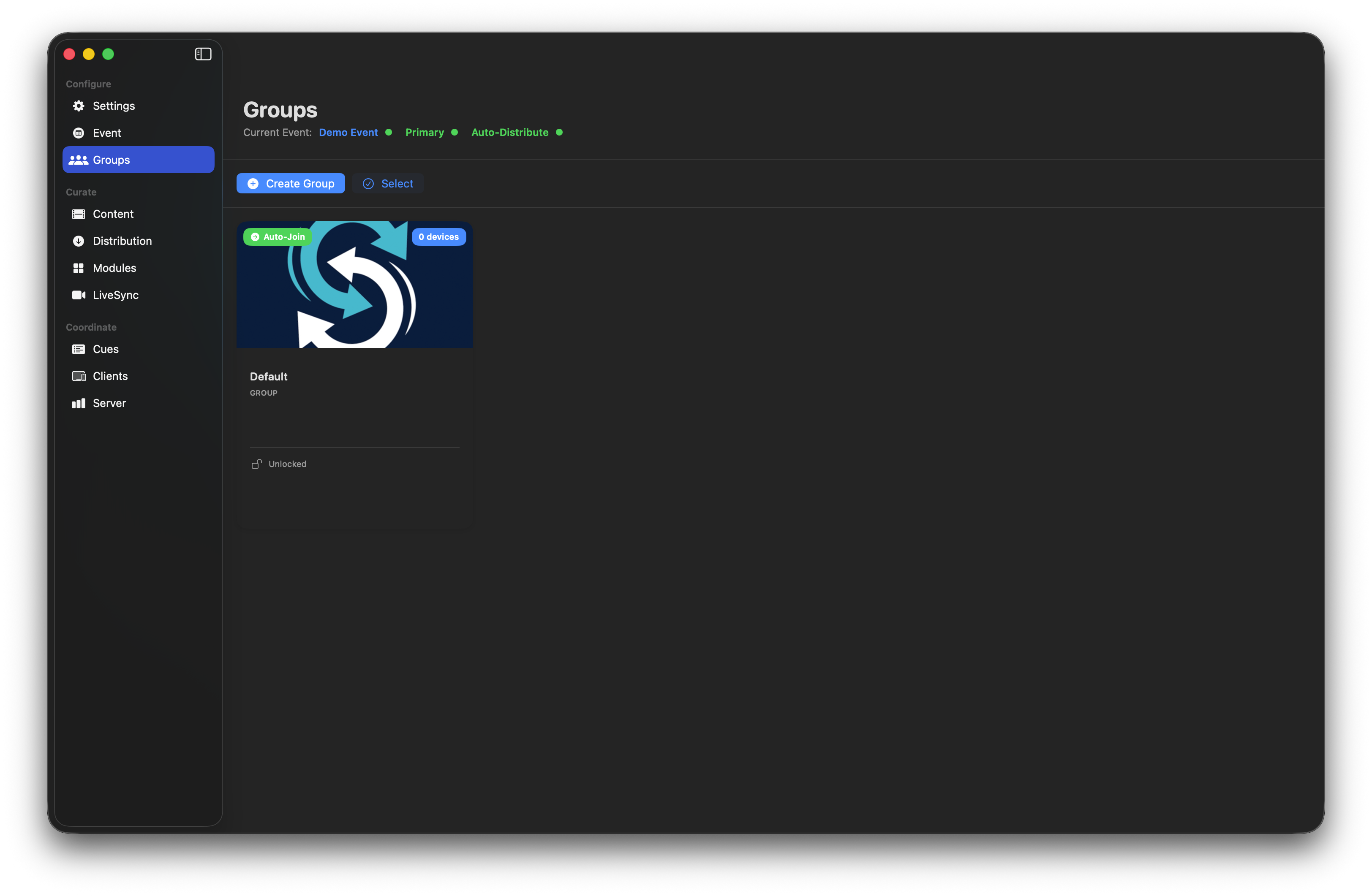
Every new event starts with a single Default group set to Auto-Join.
Creating and managing groups
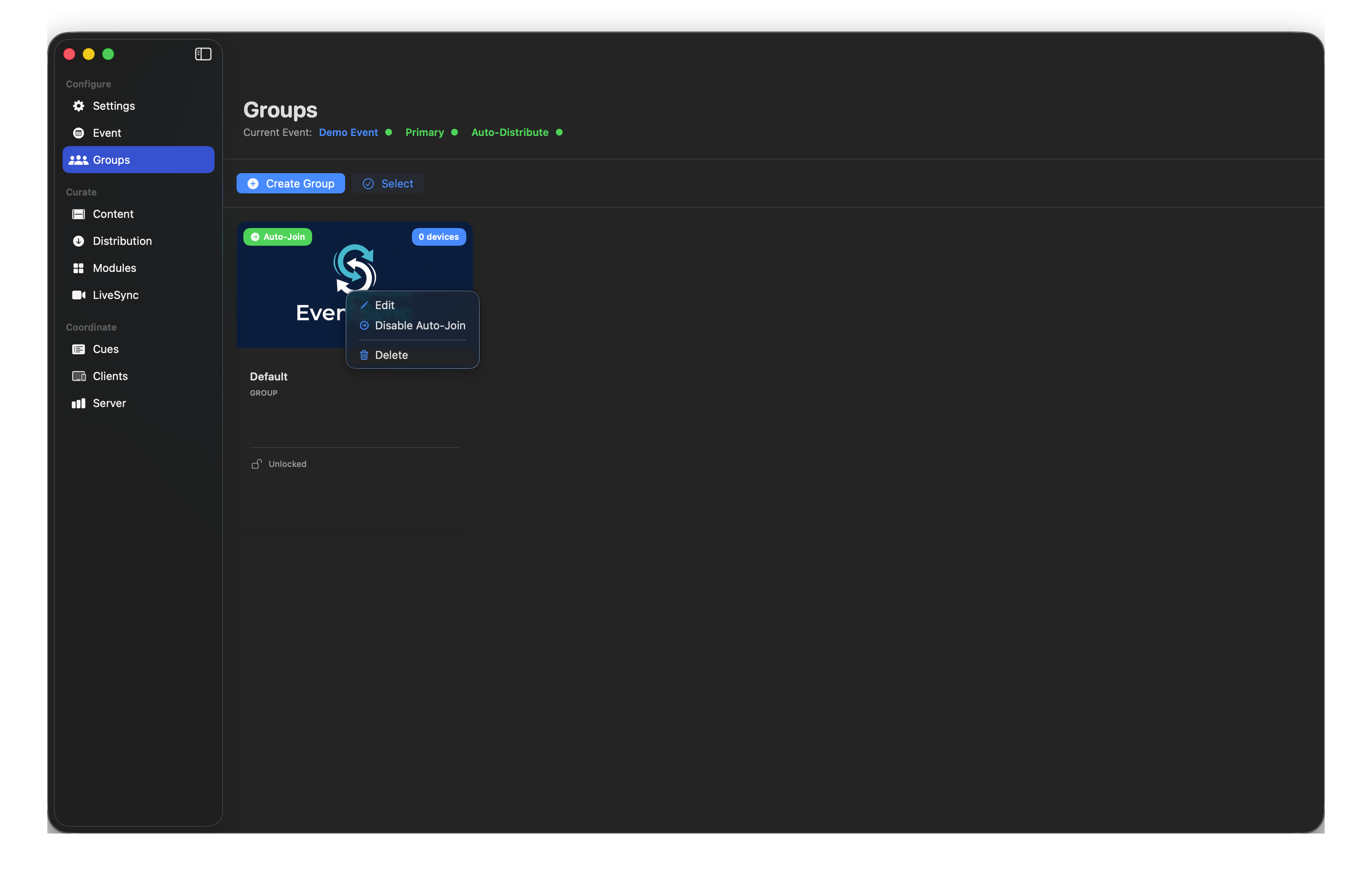
Click Create Group and name it. Right-clicking a group gives you Edit / Enable or Disable Auto-Join / Delete. Only one group can be set to Auto-Join at a time.
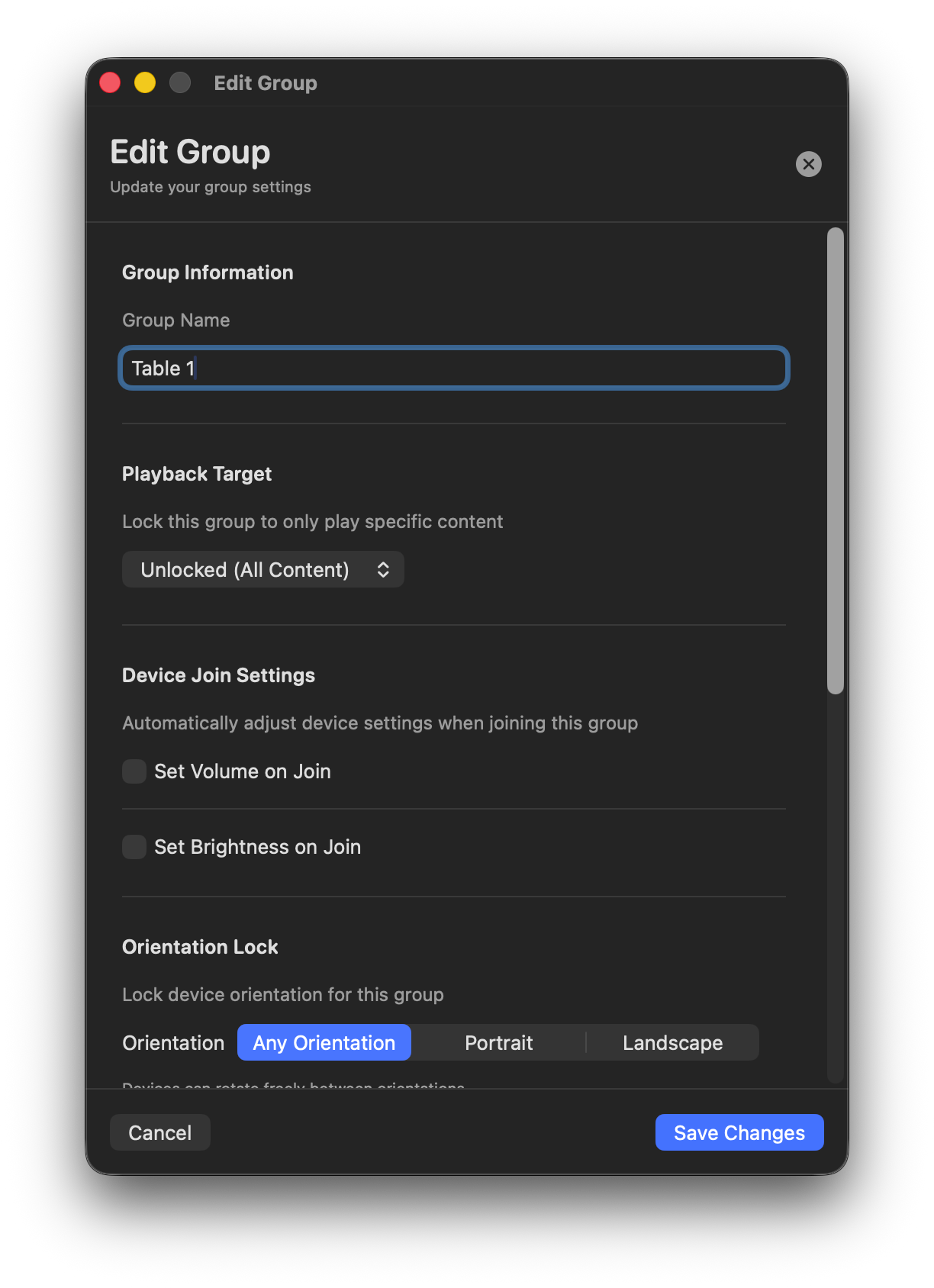
Editing a group
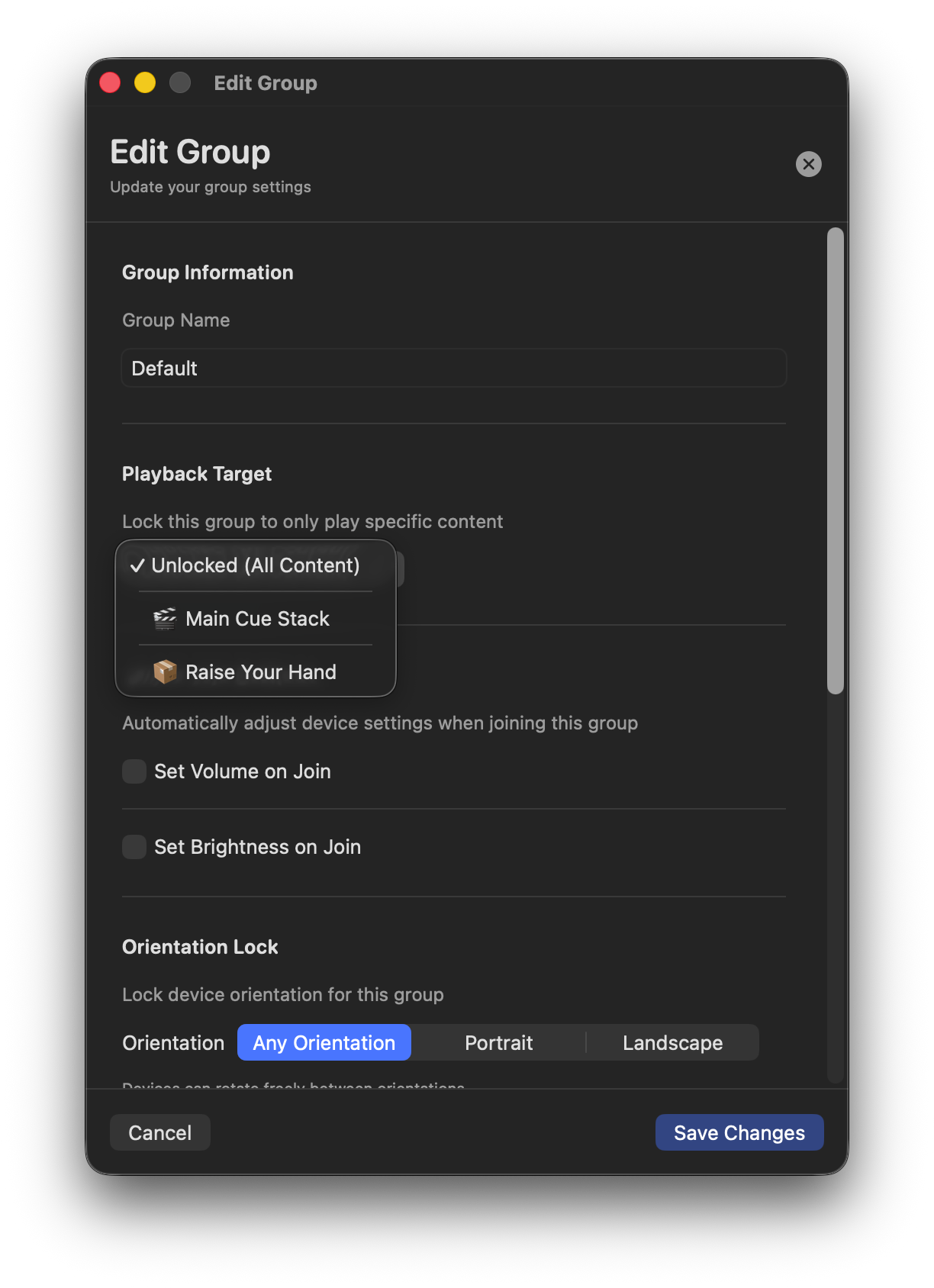
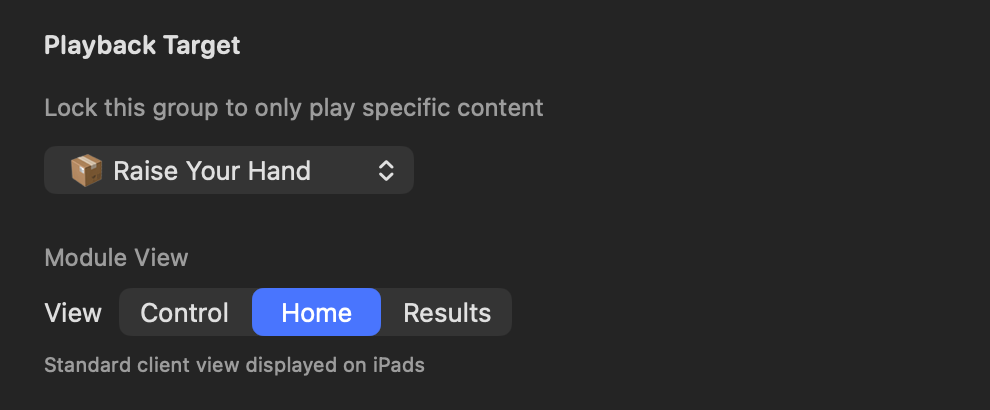
Playback Target
Lock a group to only play specific content:
- Unlocked (All Content) — default. The group receives whatever the active cue targets.
- Main Cue Stack — limits the group to cues in the main stack.
- Module (e.g. Raise Your Hand) — the group only runs that module and ignores other cues. Useful for a dedicated "Raise Your Hand" device that's never supposed to show video.
When the target is locked to a module, a Module View picker appears below — choose Control, Home (the standard client view) or Results. Every device in the group then sits on that one view of the module.
Device Join Settings
Auto-apply settings every time a device joins this group:
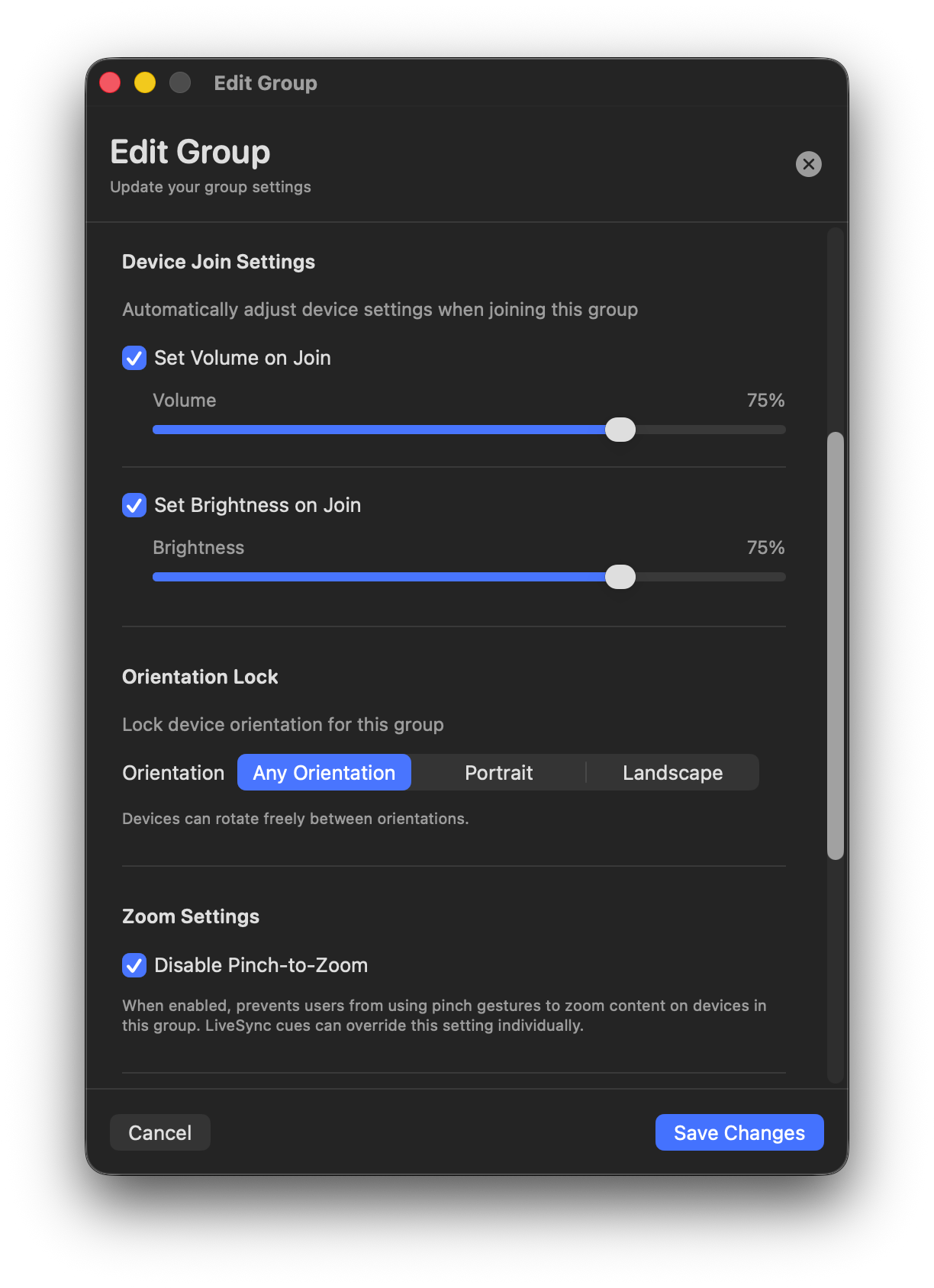
- Set Volume on Join — 0–100 %.
- Set Brightness on Join — 0–100 %.
Orientation Lock
- Any Orientation — devices rotate freely.
- Portrait / Landscape — force one orientation regardless of how the device is held.
Zoom Settings
Disable Pinch-to-Zoom — prevents guests zooming content. LiveSync cues can override this individually, so you can disable zoom by default but enable it on the "slides" LiveSync feed.
Cue Timing — Cue Buffer Offset
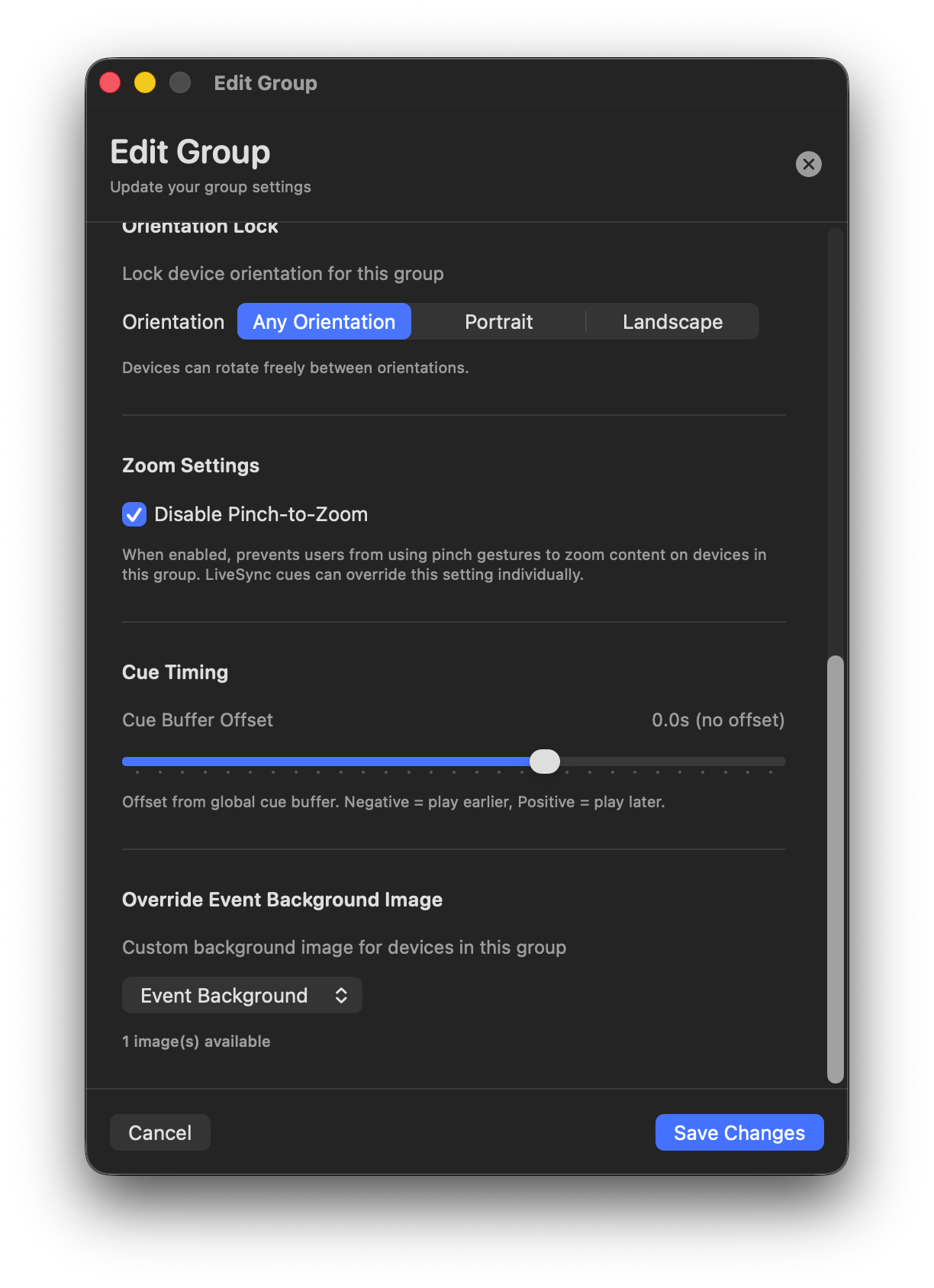
Adjust this group's cue timing relative to the Global Cue Buffer. Negative = plays earlier, positive = plays later. Useful for a group that's a single HDMI hop behind the rest (a large LED wall processor, say).
Override Event Background Image
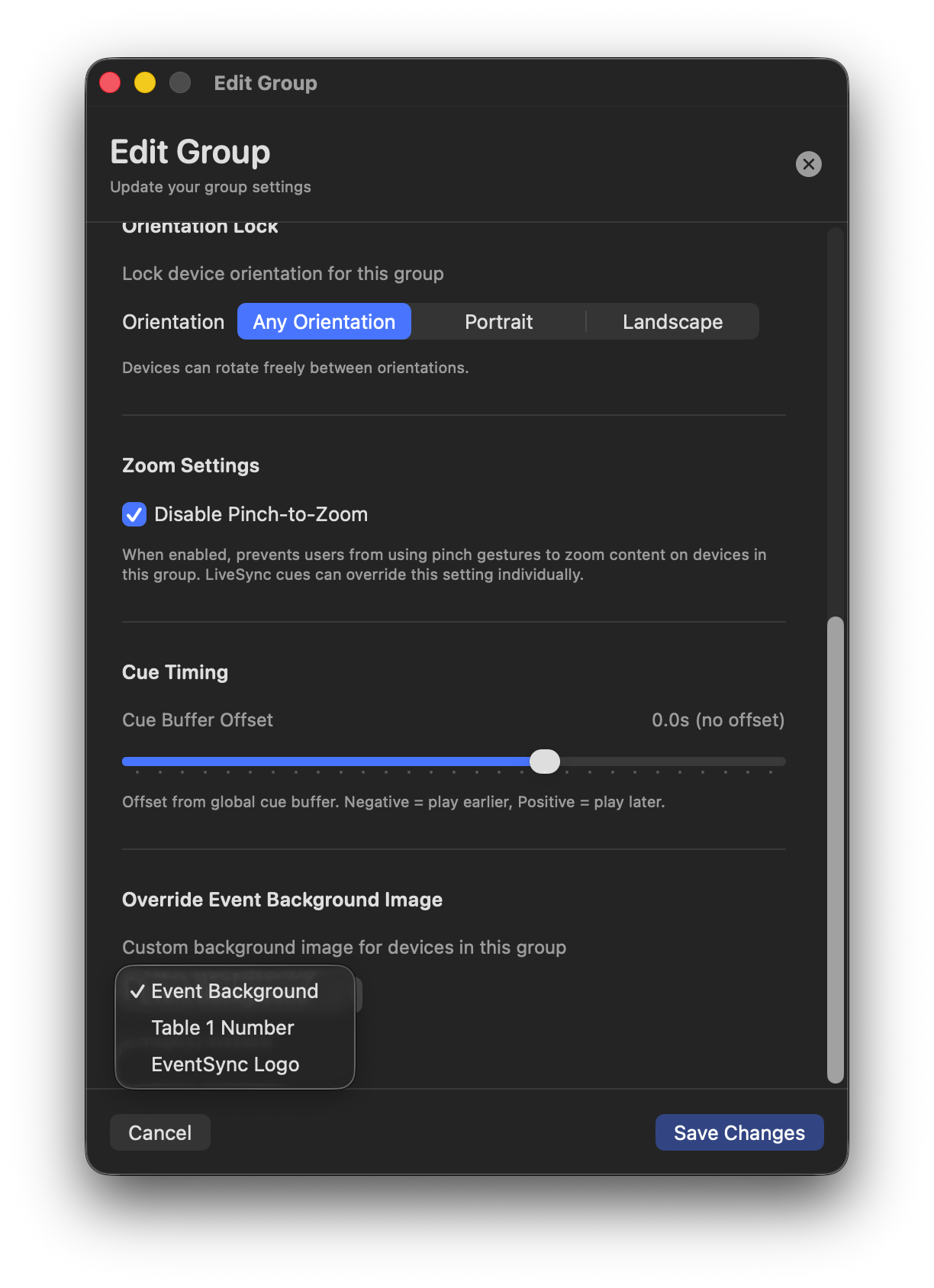
Swap the event-wide idle image for a custom one on this group — e.g. show a giant "Table 7" on Table 7's devices between cues so guests know where they're sitting.
💡 Live vs join-time settings
Orientation, pinch-to-zoom and background-image changes apply immediately to every connected device in the group — handy for tweaks mid-rehearsal. The on Join settings (Volume, Brightness) only take effect when a device joins the group, so they don't affect devices that are already connected.
Multiple groups and bulk edit
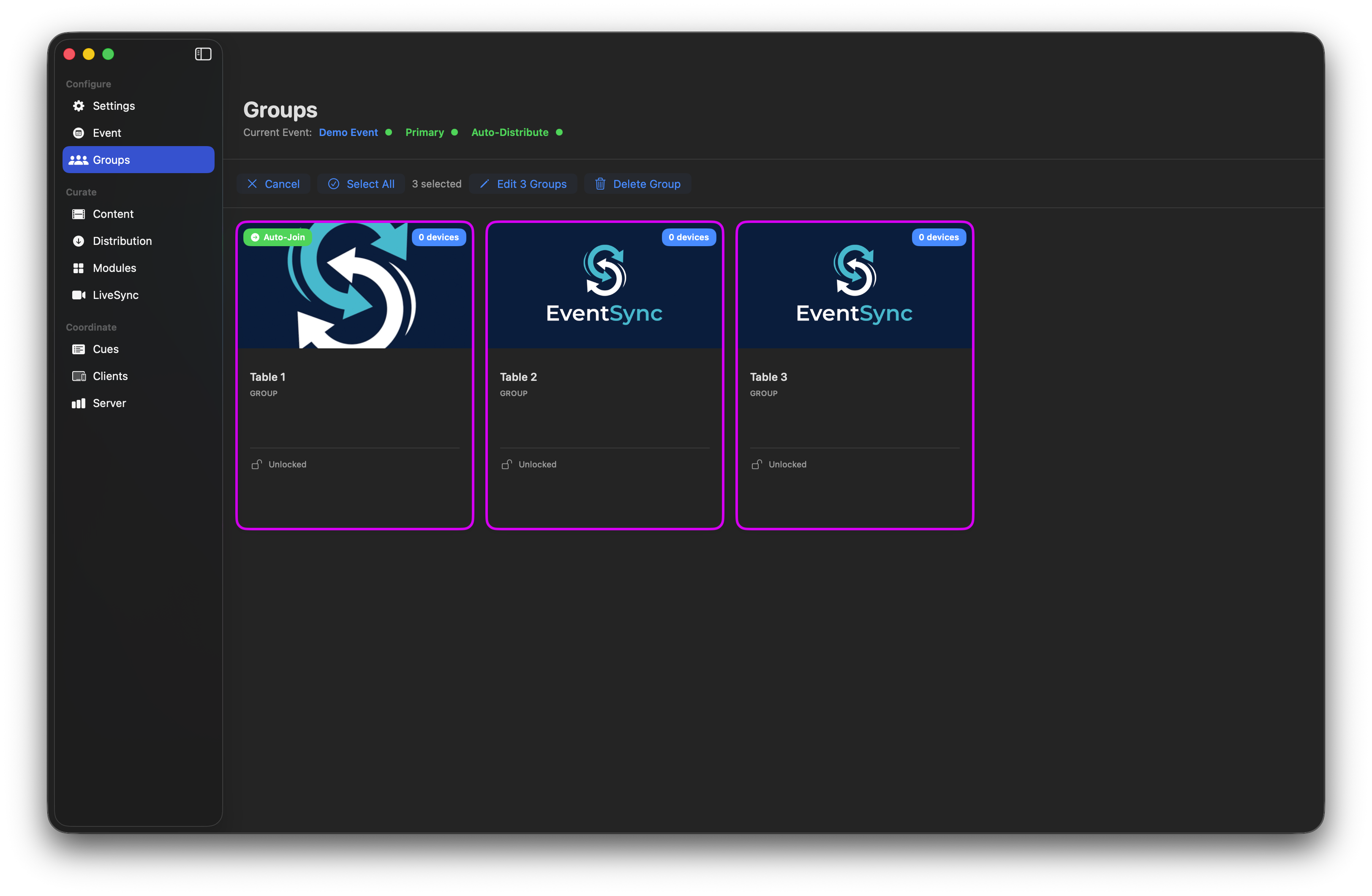
Click Select to enter selection mode. You can then bulk-edit the selected groups or delete multiple at once.
Bulk edit — the "Mixed" state
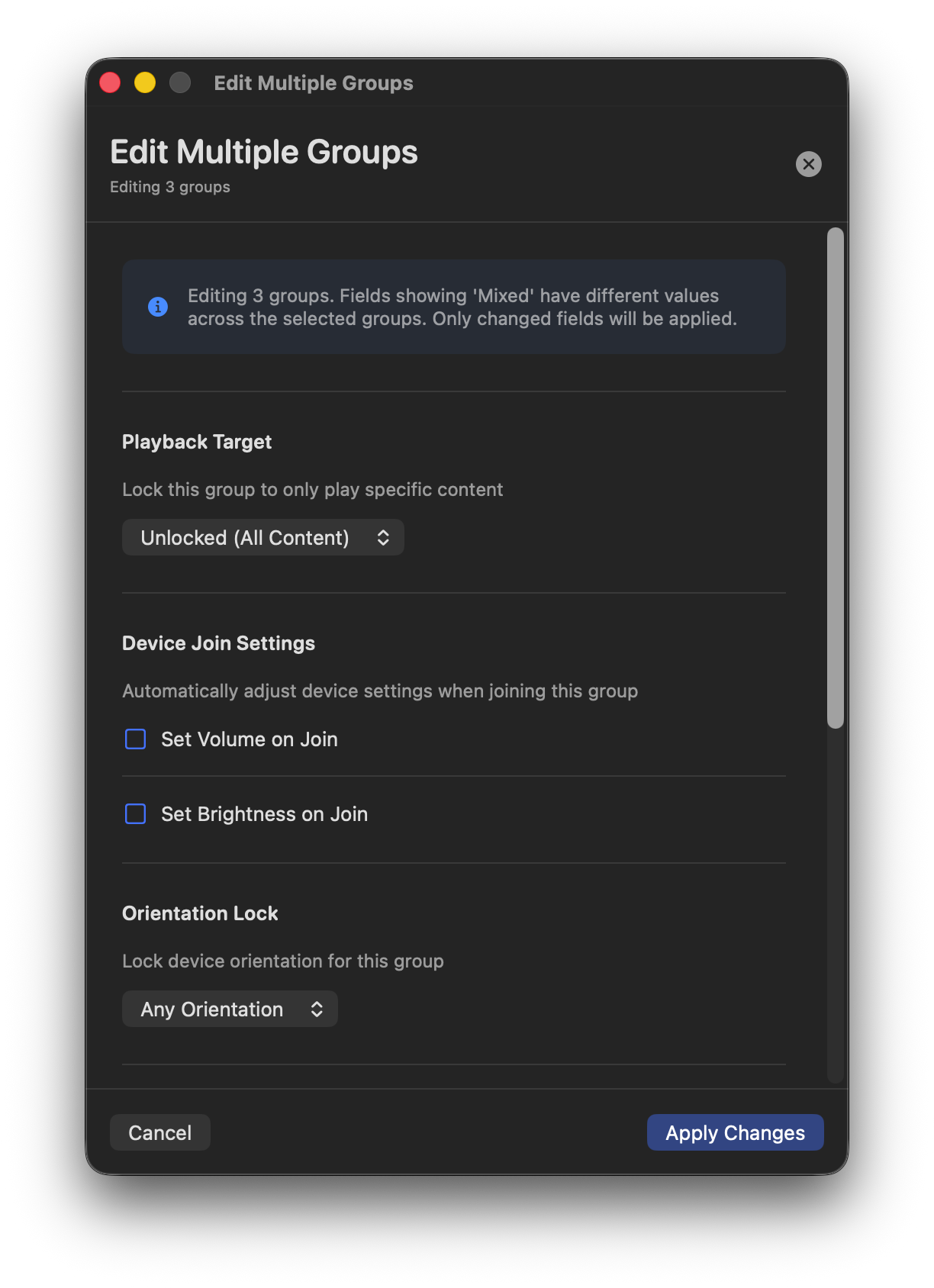
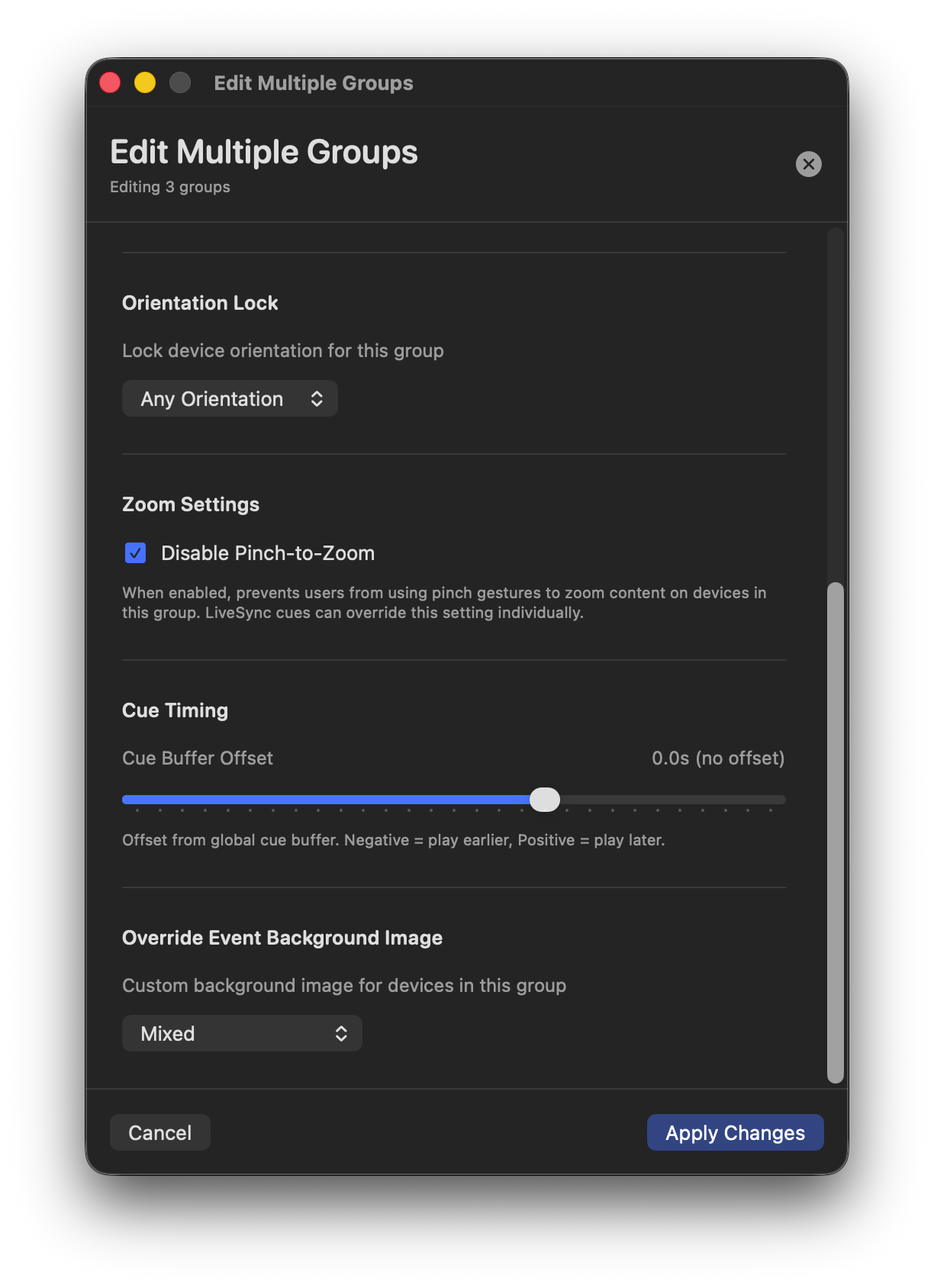
Fields that have different values across the selected groups show as Mixed. Leave them as Mixed to keep each group's existing value; change them to apply a new value to everything in the selection. Only fields you actually change get written — the others stay untouched per group.
💡 Worked example
Twenty table groups, each with a different "Table N Number" background. Select all twenty → bulk edit → set Set Brightness on Join to 80 %, leave the background dropdown as Mixed, Apply. Every table now gets 80 % brightness, and every table keeps its unique number graphic.