
Advanced
BackupSync, Show Control, Import/Export, Factory Reset and troubleshooting — the things you don't need every show, but that matter enormously when you do.
BackupSync
BackupSync is EventSync's failover system. A second Mac runs a Backup server that continuously mirrors the Primary's state. If the Primary has a problem, the operator clicks Take Control on the Backup and the show carries on.
When to use it
- Any show where the client has said "it can't fail" — awards, AGMs, product launches.
- Long-running installations.
- Any event where the cost of a five-minute outage exceeds the cost of a second Mac.
Hardware you need
- A second Apple Silicon Mac, ideally identical spec to the Primary.
- Wired Ethernet on both Macs, on the same event LAN.
- Same EventSync Launcher version on both Macs.
Setting it up
- On the Primary Mac, run EventSync as normal. Note the server PIN.
- On the Backup Mac, open EventSync Server. From the Stopped role dropdown pick Start Backup Server.
- The Backup discovers the Primary over Bonjour and pairs automatically. Enter the Primary's PIN if prompted.
- Once paired, the Backup continuously mirrors events, groups, content, distribution state, cue stacks and module state from the Primary.
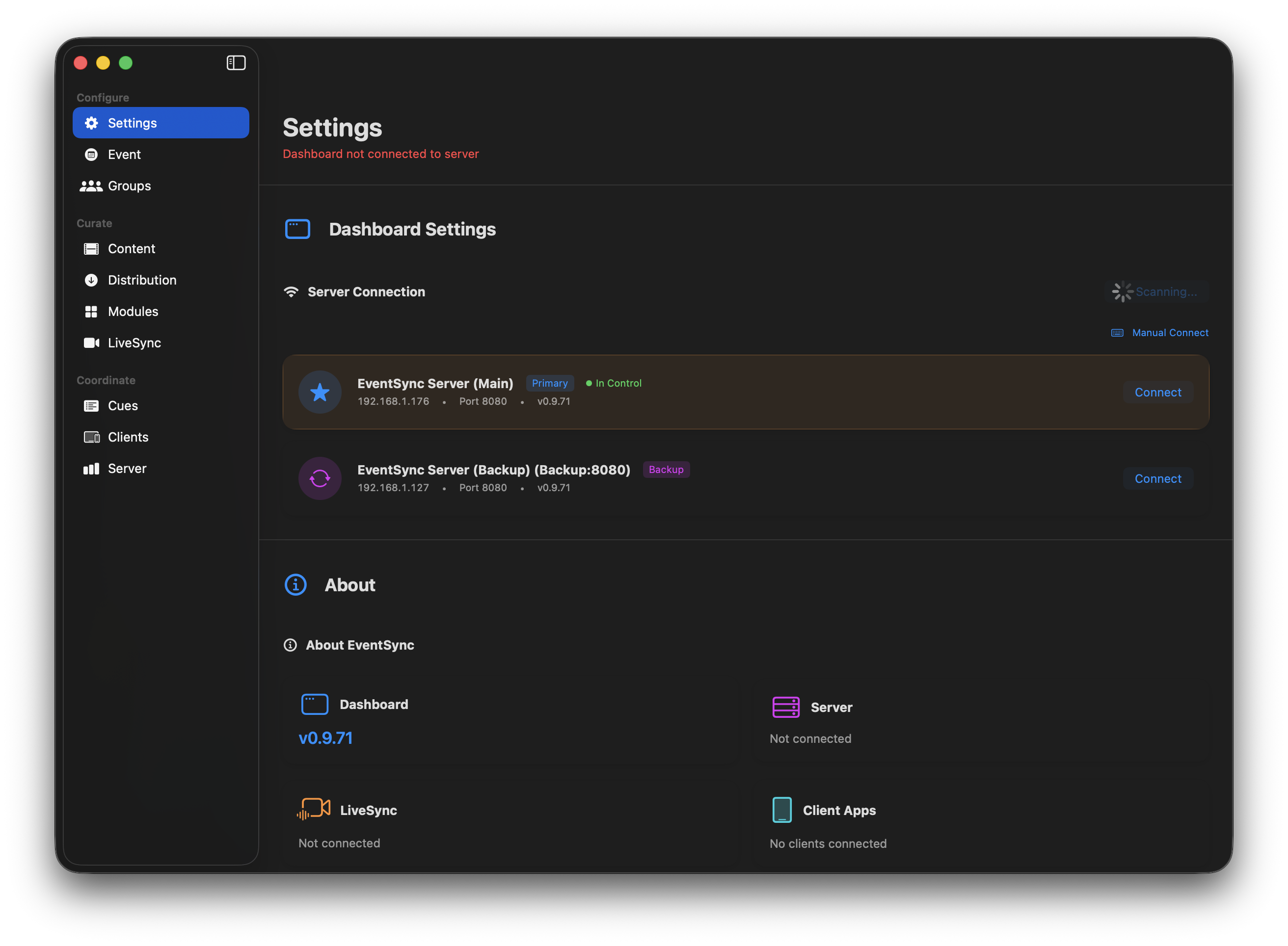
Both servers discovered on the network — EventSync Server (Main) marked Primary · In Control, and EventSync Server (Backup) badged Backup.
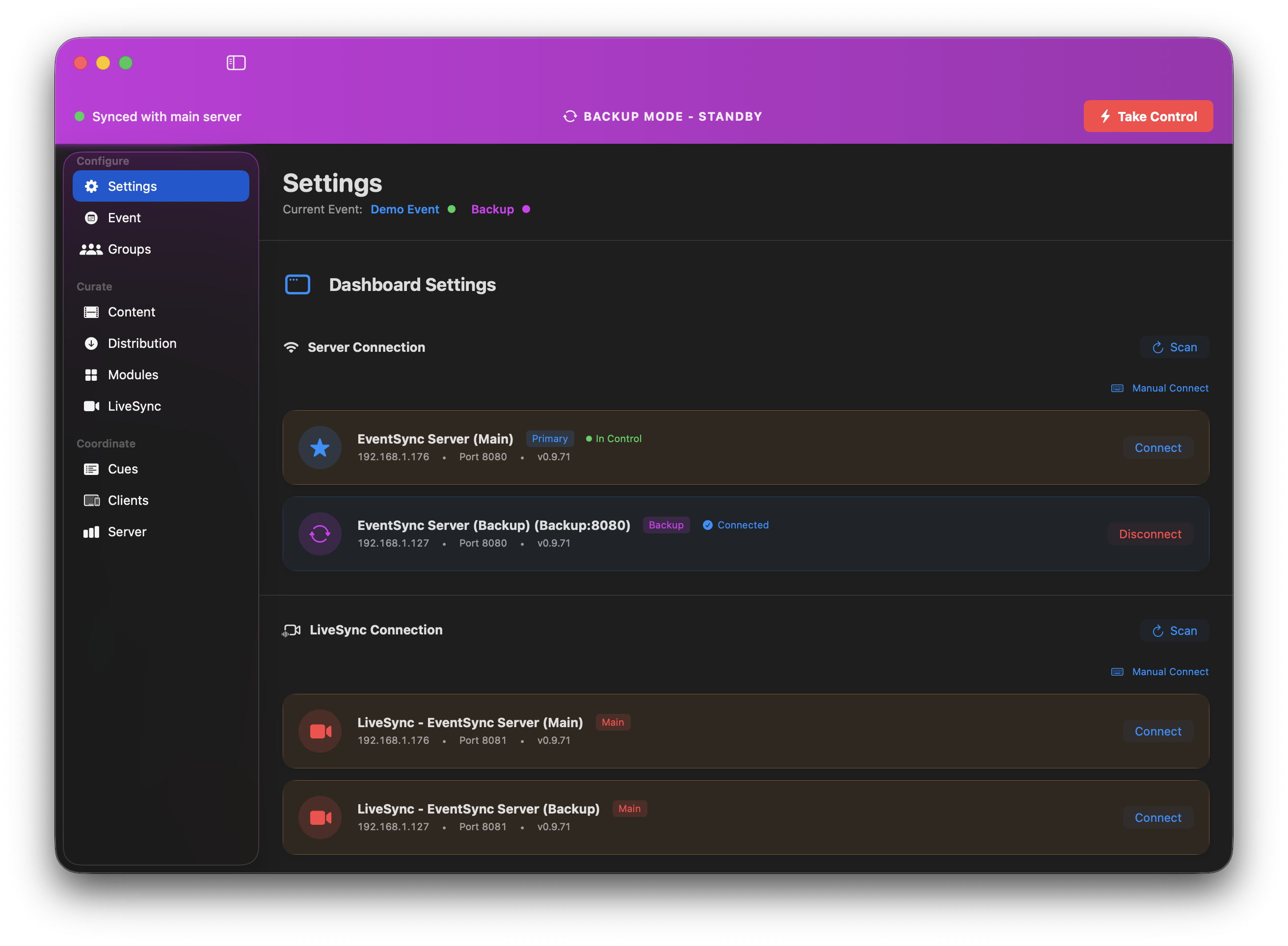
Dashboard connected to the Backup server: purple banner "Synced with main server · BACKUP MODE · STANDBY" with the Take Control button top-right.
What gets mirrored
The Backup receives a live copy of everything on the Primary — the event, all groups, all content (originals and transcodes), distribution state, cue stacks and current module state. When you hand control over, there's nothing extra to copy.
Taking control
Switchover is deliberately manual. When you need the Backup to take over:
- On a Dashboard connected to the Backup server, click Take Control (top-right of the Backup banner).
- Confirm the dialog — "This will switch all connected devices to receive commands from this backup server."
- All connected devices switch to the Backup. The banner turns green — BACKUP SERVER · IN CONTROL.
The operator's finger stays on the button — no automatic promotion, no phantom handovers from transient network blips.
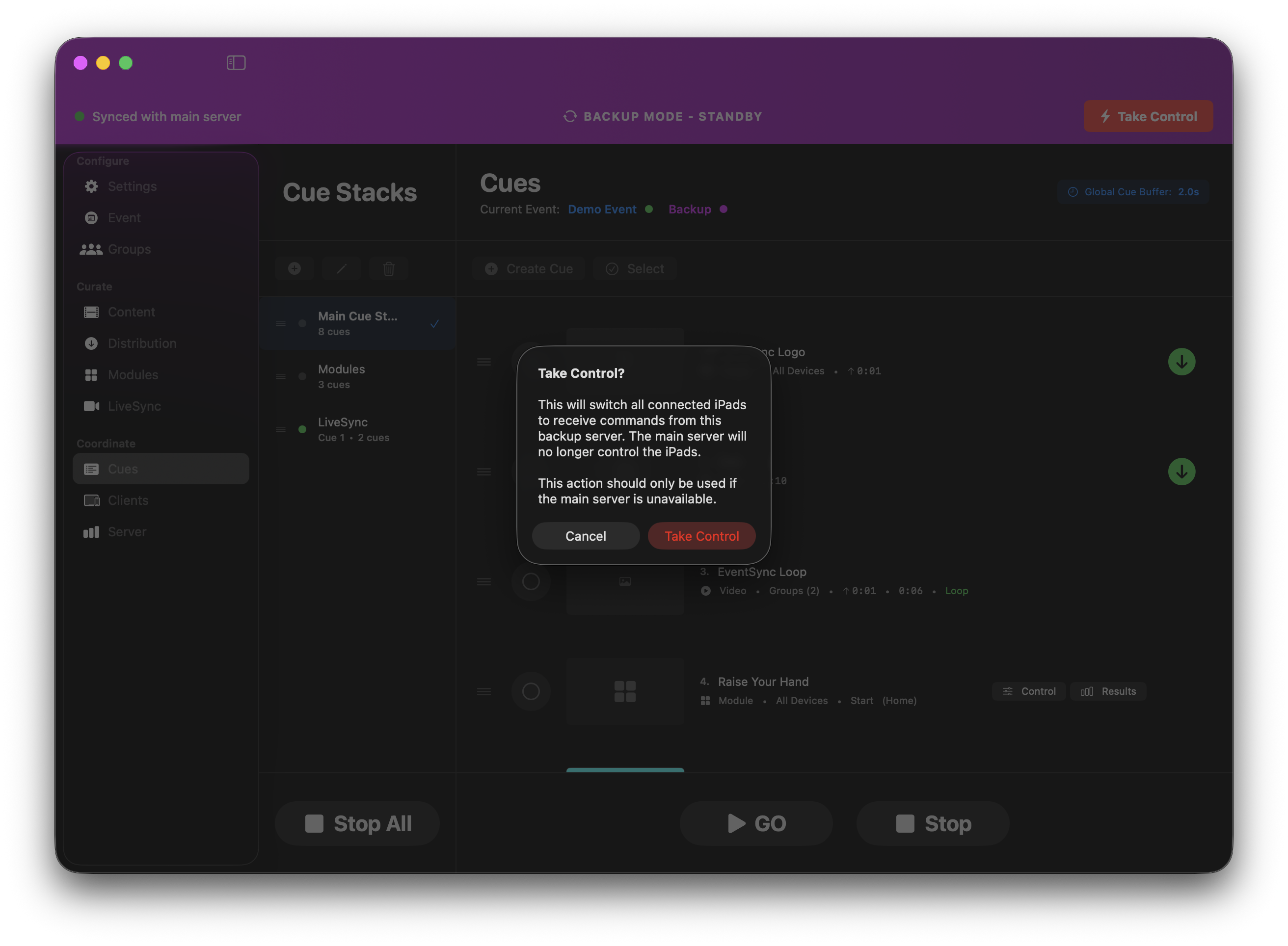
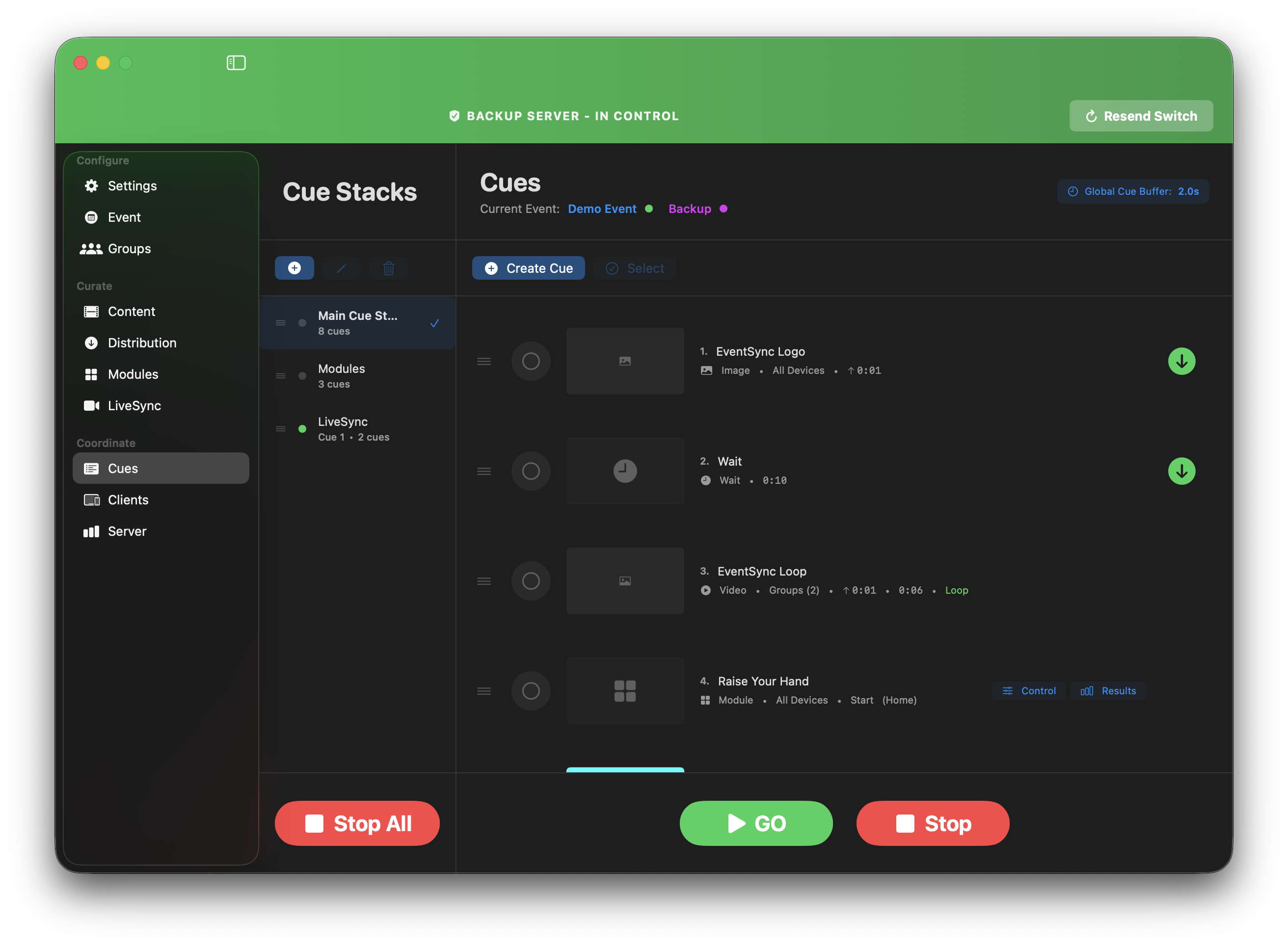
After confirming Take Control, the Backup server is live and running the show.
After a handover
When the original Primary comes back up, its Dashboard shows an amber banner — MAIN SERVER · BACKUP IN CONTROL — with a Reclaim Control button. The Main server knows it's been superseded and sits idle until you decide to take back.
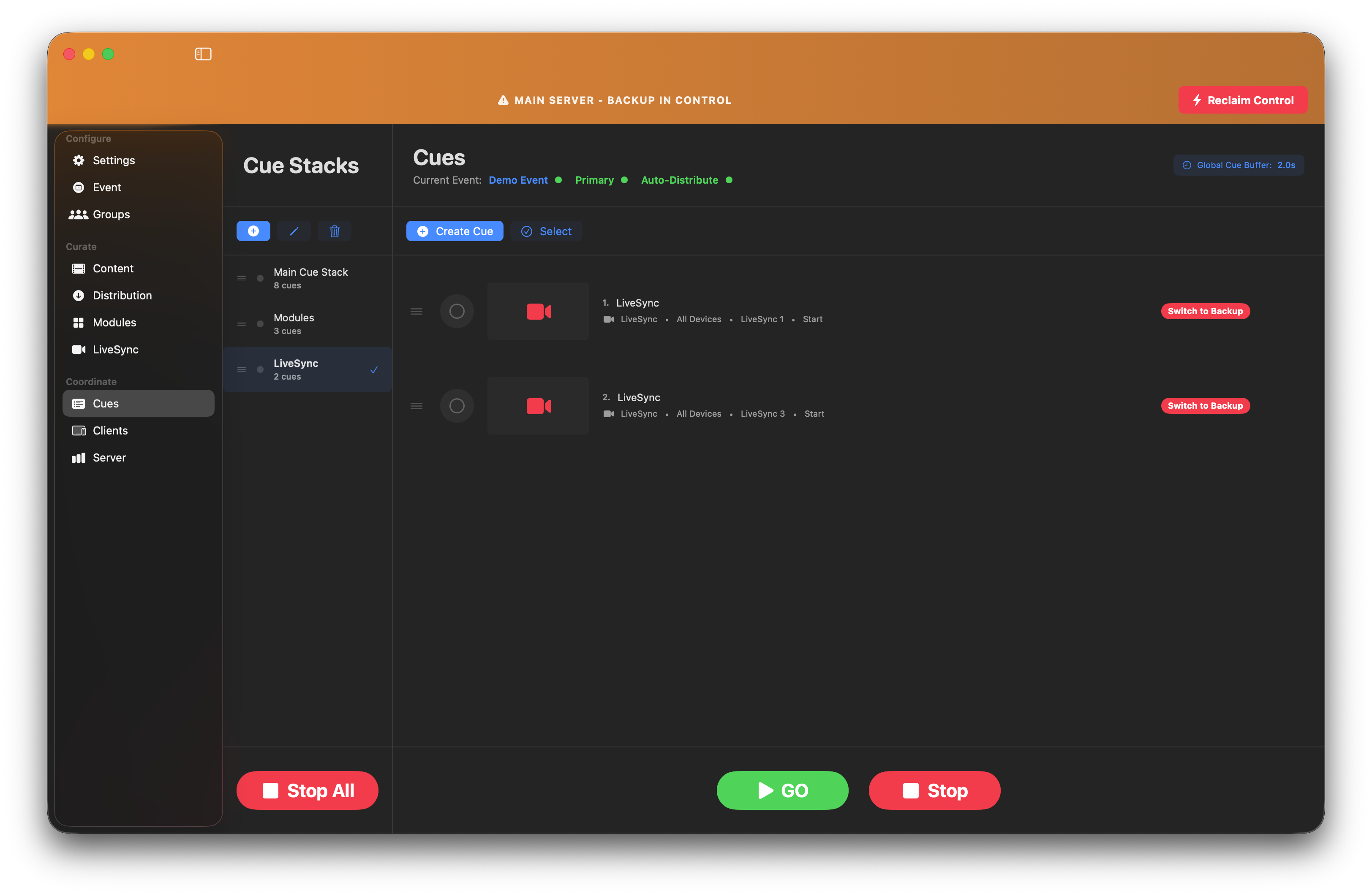
To hand control back to the Main:
- On the Main server's Dashboard, click Reclaim Control.
- Confirm the dialog — "This will switch all connected devices back to this main server. The backup server will return to standby mode."
- Devices switch back; the Backup returns to standby.
There's rarely a need to reclaim mid-show — leave it until a natural break or after strike.
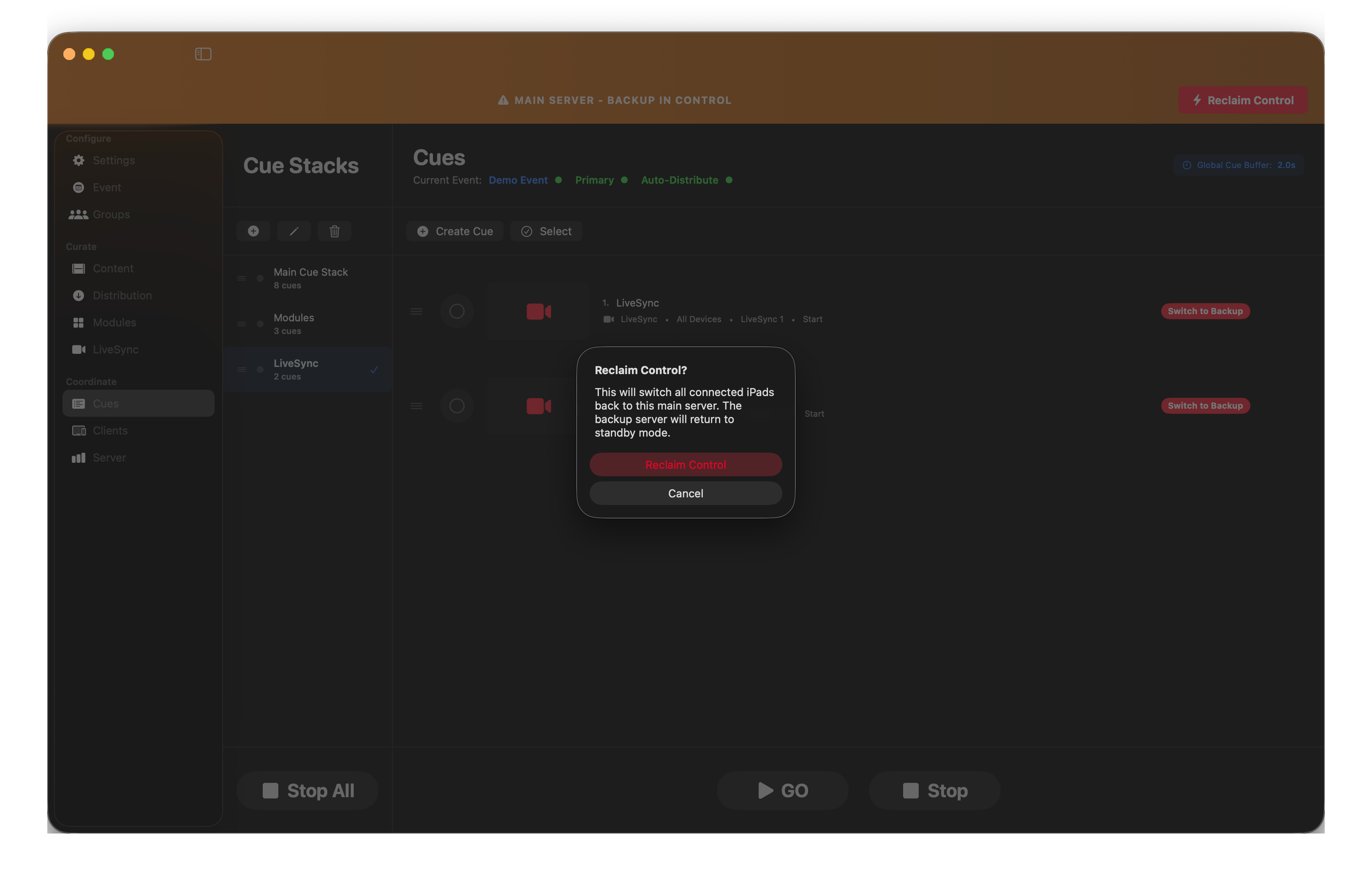
💡 Best Practice — rehearse the handover
Pull the Primary's Ethernet during rehearsal and run through the Take Control procedure with your crew. Everyone sees what the transition looks like, you verify the timing, and you catch configuration mismatches before doors.
💡 LiveSync Backup is different
LiveSync streams have their own per-cue Backup switchover via the Switch to Backup button on each LiveSync cue row — it operates independently of BackupSync and is documented under LiveSync cue.
Show Control — Bitfocus Companion
EventSync exposes cue triggering over the network so Bitfocus Companion — the button-box app used with Stream Decks — can fire cues from a physical button press.
Enabling Show Control
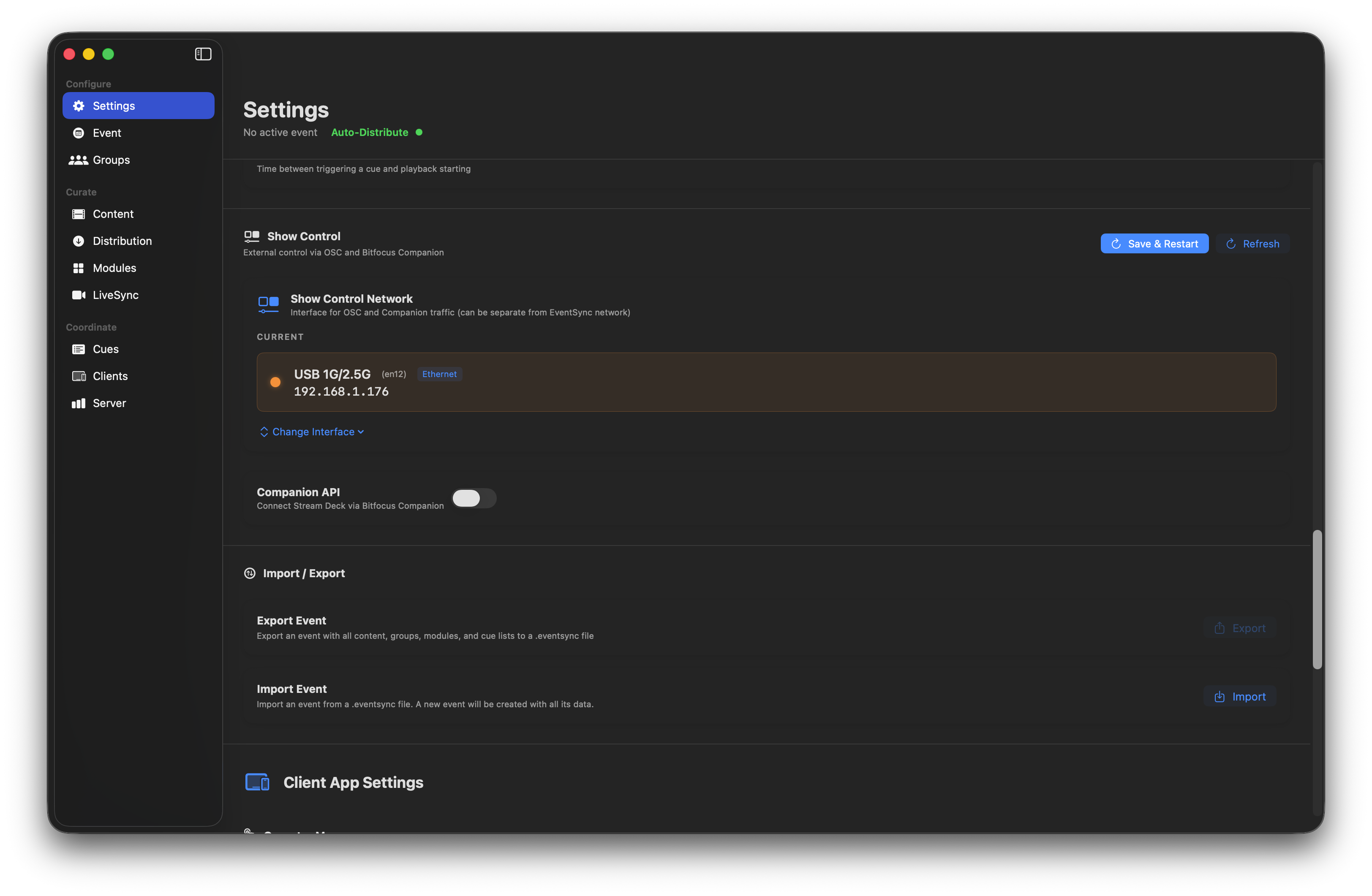
In Dashboard Settings → Show Control, enable Show Control Network and pick the interface the traffic will use. Keep it on a separate interface from devices if you can — the WAN interface, for example.
Enabling the Companion API
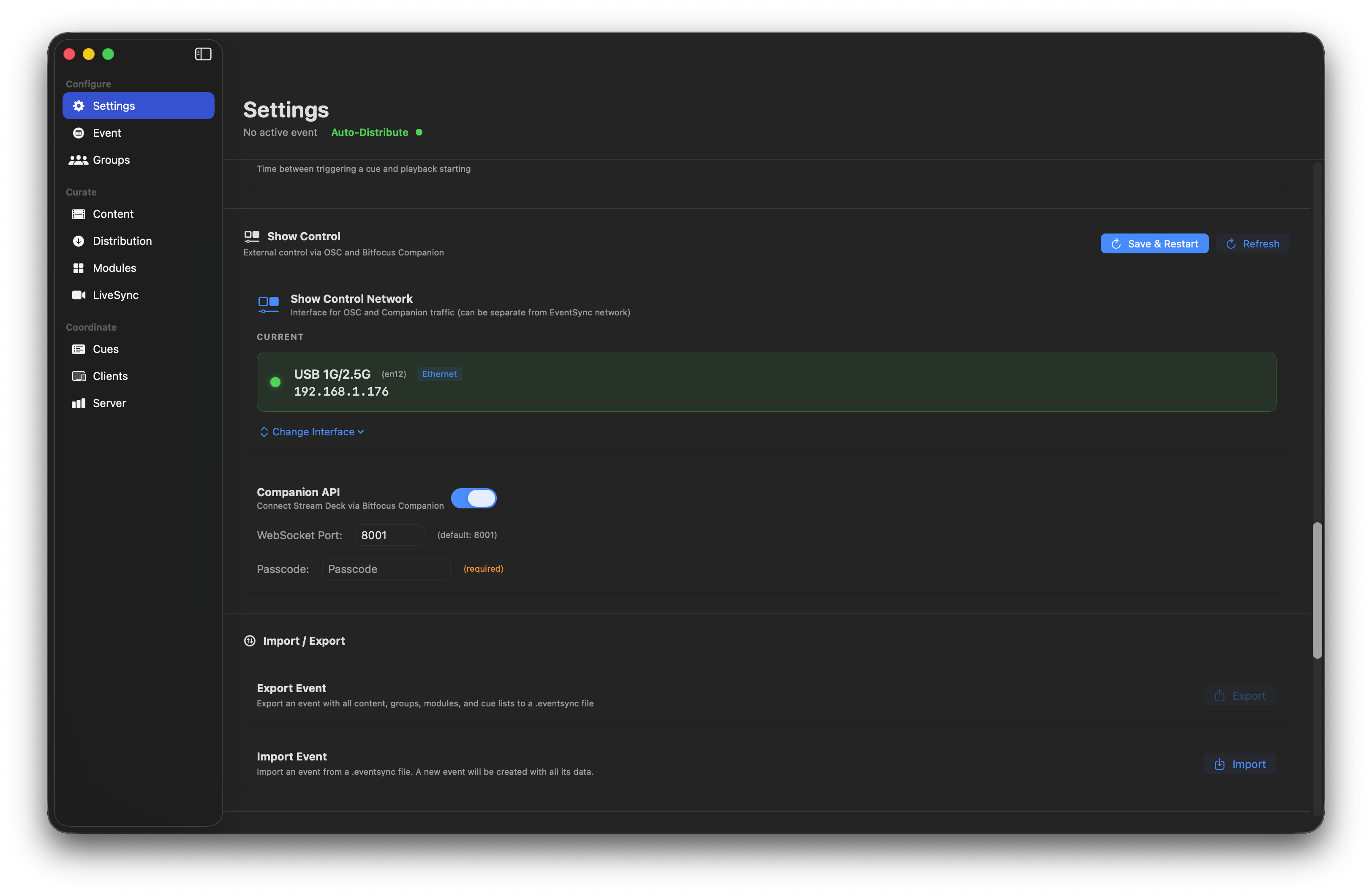
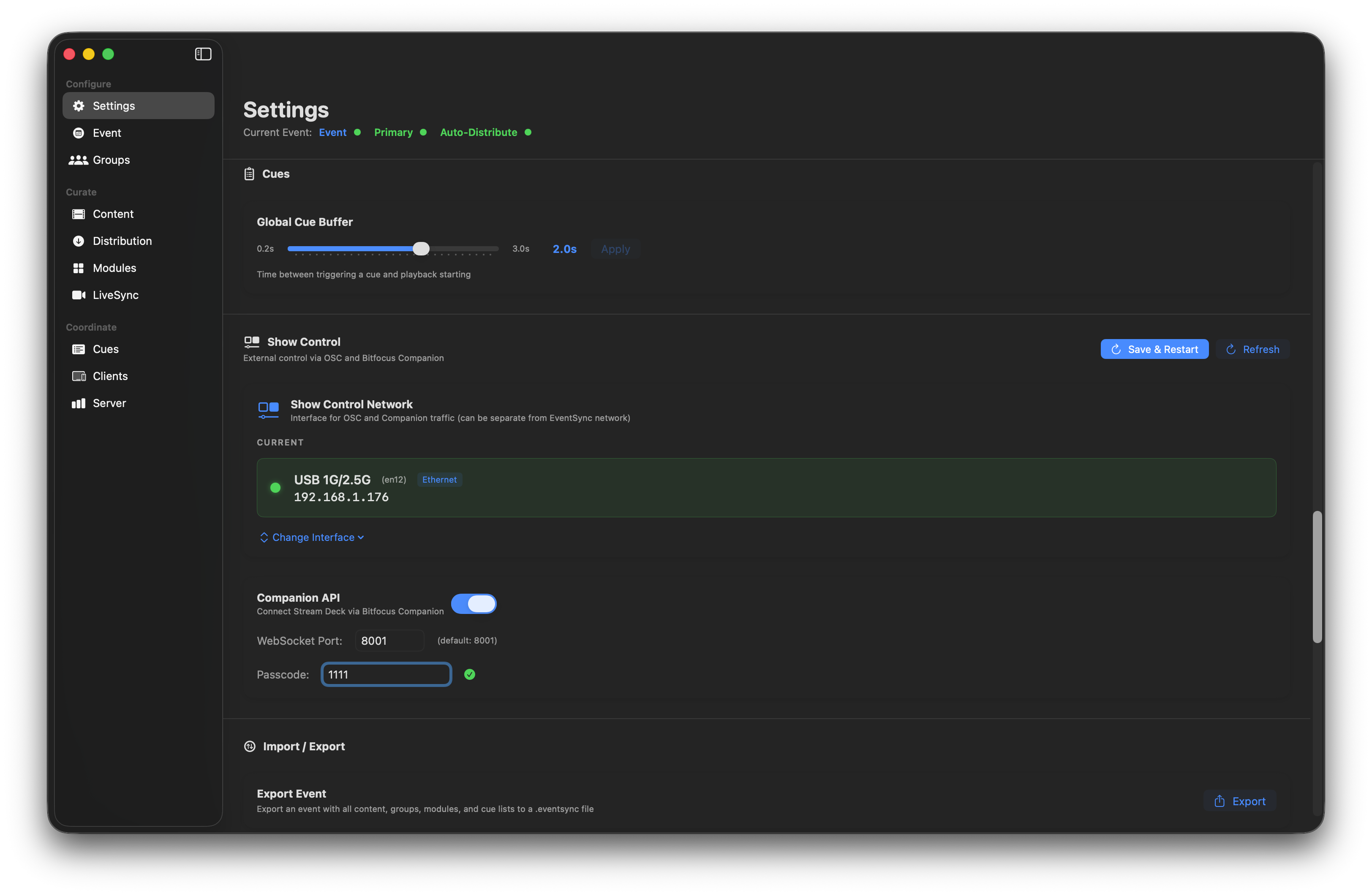
- Toggle Companion API on.
- WebSocket Port — default
8087. - Passcode — required. Companion clients present this when connecting.
💡 Best Practice
Set a passcode you can type in under pressure at a stream deck. Simple, memorable to the whole crew, not the same as the server PIN.
Connecting from Companion
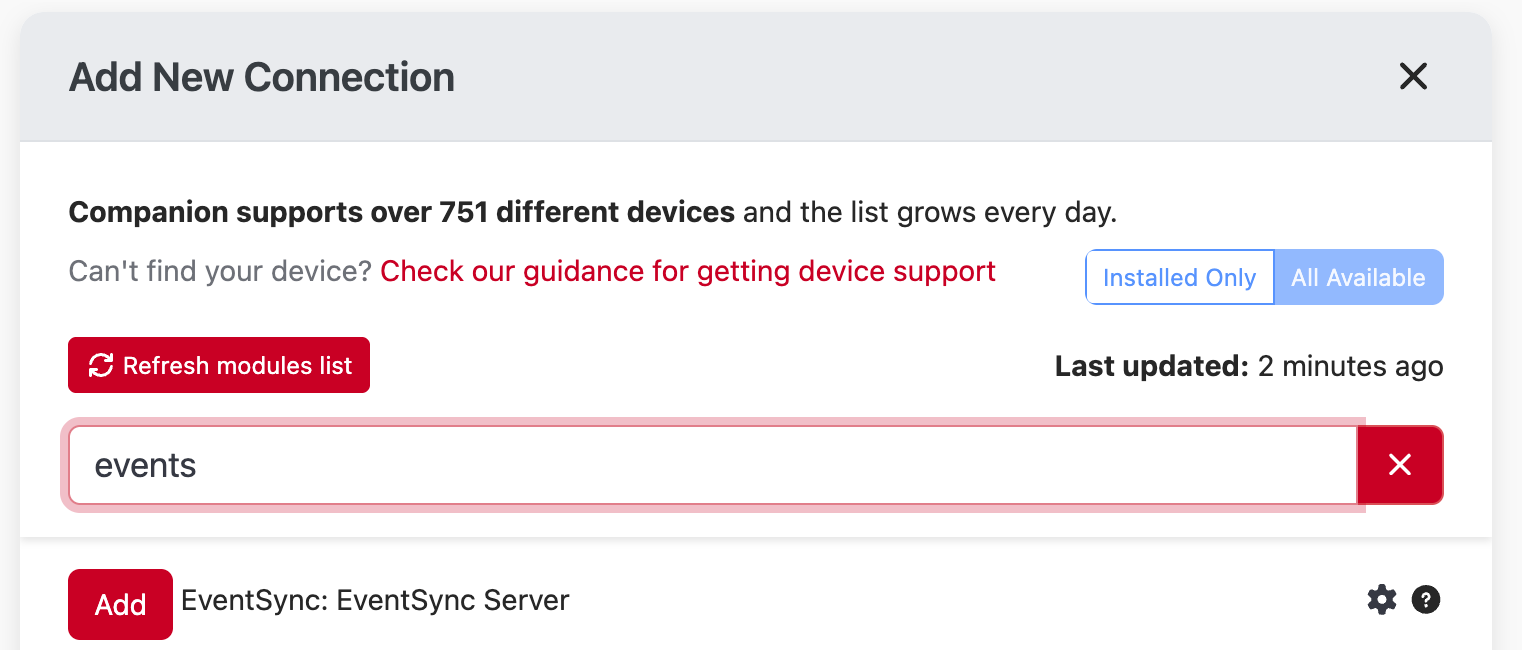
In Companion, add a new connection and search for EventSync. Pick EventSync: EventSync Server, then fill in the server's IP, port (default 8087) and the passcode you set above.
Available actions
EventSync exposes a rich set of Companion actions, grouped into four categories:
- Cue Stack — fire cues (Go, Next, Previous, Pause, Resume, Stop, Go Cue Number, Focus Lock/Unlock) on a specific named stack.
- Focus — the same set of actions, but always operating on whichever stack is currently focused in the Dashboard. Ideal for a single "next" button that follows the show flow.
- Global — fire or step actions across all stacks at once. Also includes Global Fire ContentOSC for direct content triggering by ID.
- Module / Settings — Module Enable / Disable, Select Cue Stack, Set Auto-Distribute, Set Global Buffer, Set Transcode Limit, Set Wave Size.
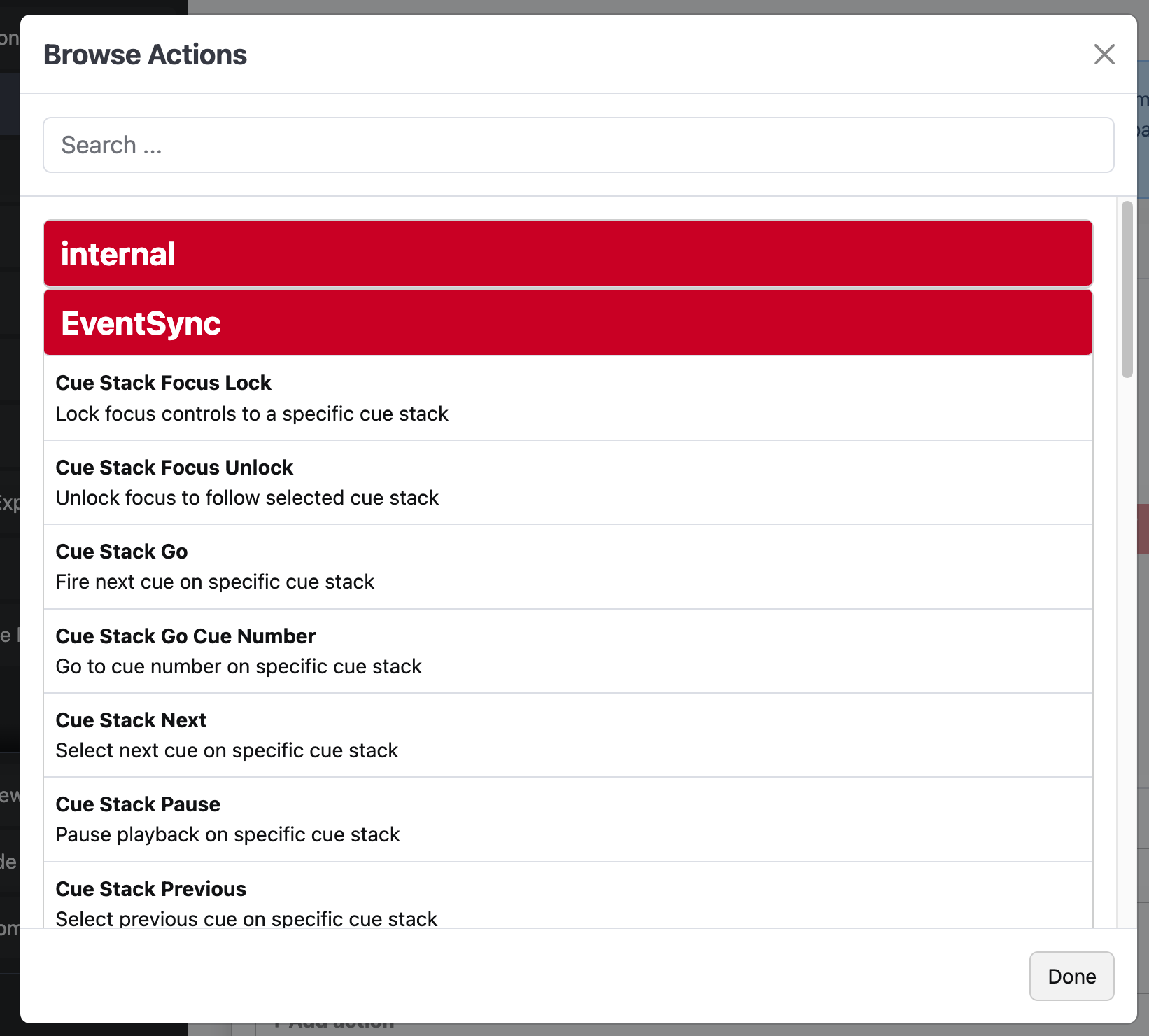
A slice of the action list — browse through to see Cue Stack, Focus, Global and Module/Settings groups.
Import / Export
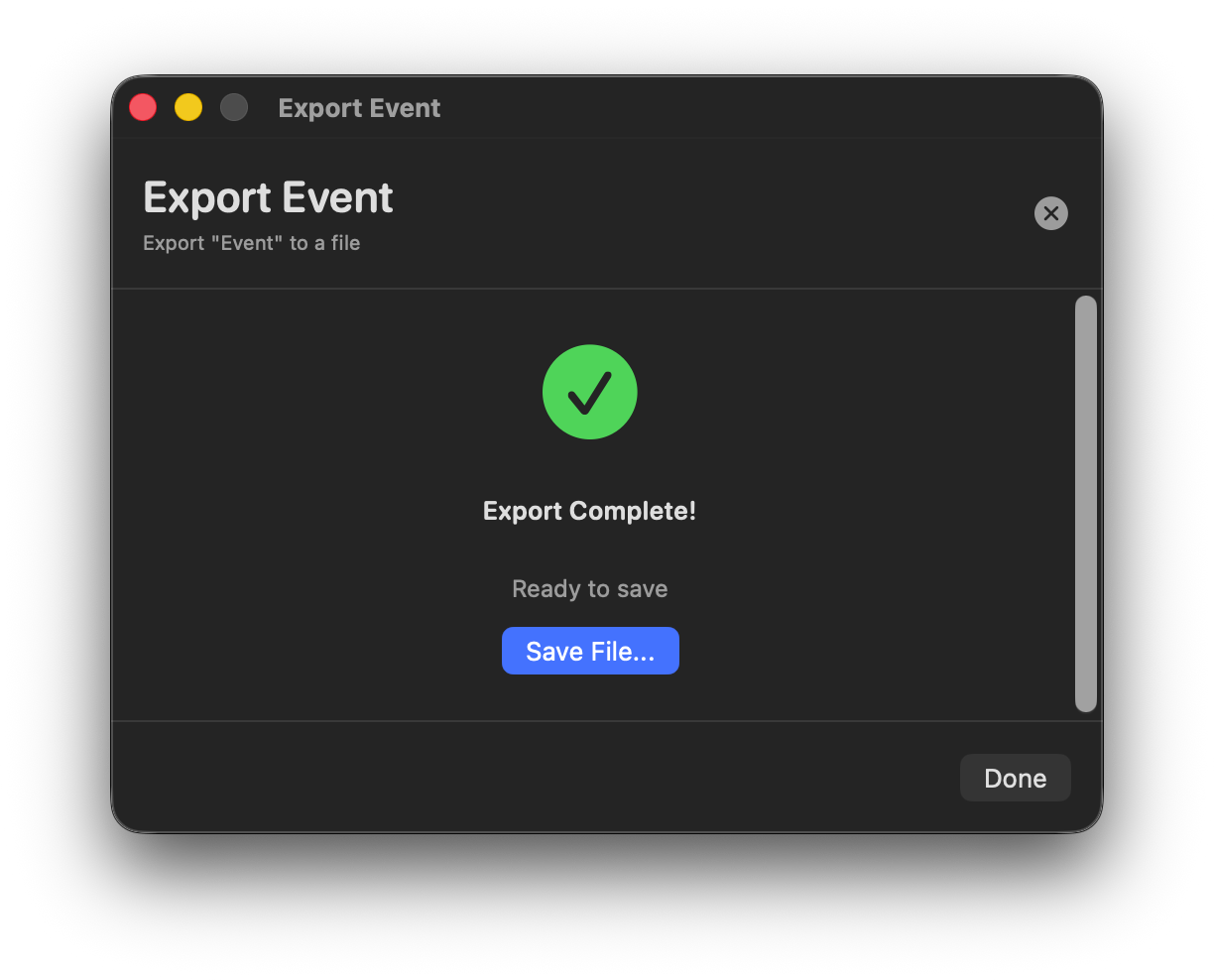
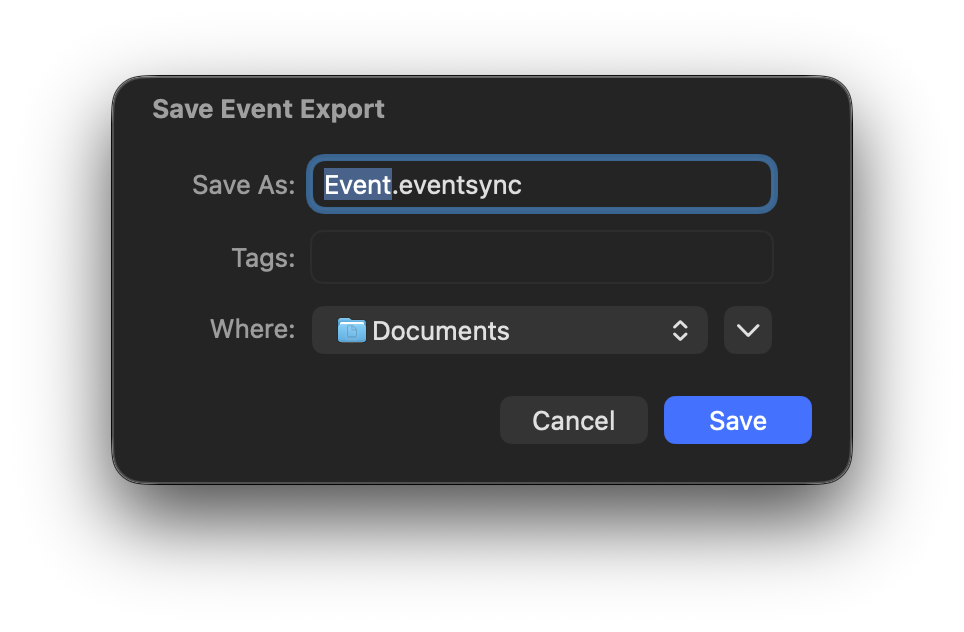
Export your entire event to a .eventsync file — content, groups, modules, cues, LiveSync setup. Import creates a fresh event from that file. This is how you move a show between Macs, hand it to a client, or produce a backup before a Factory Reset.
Export
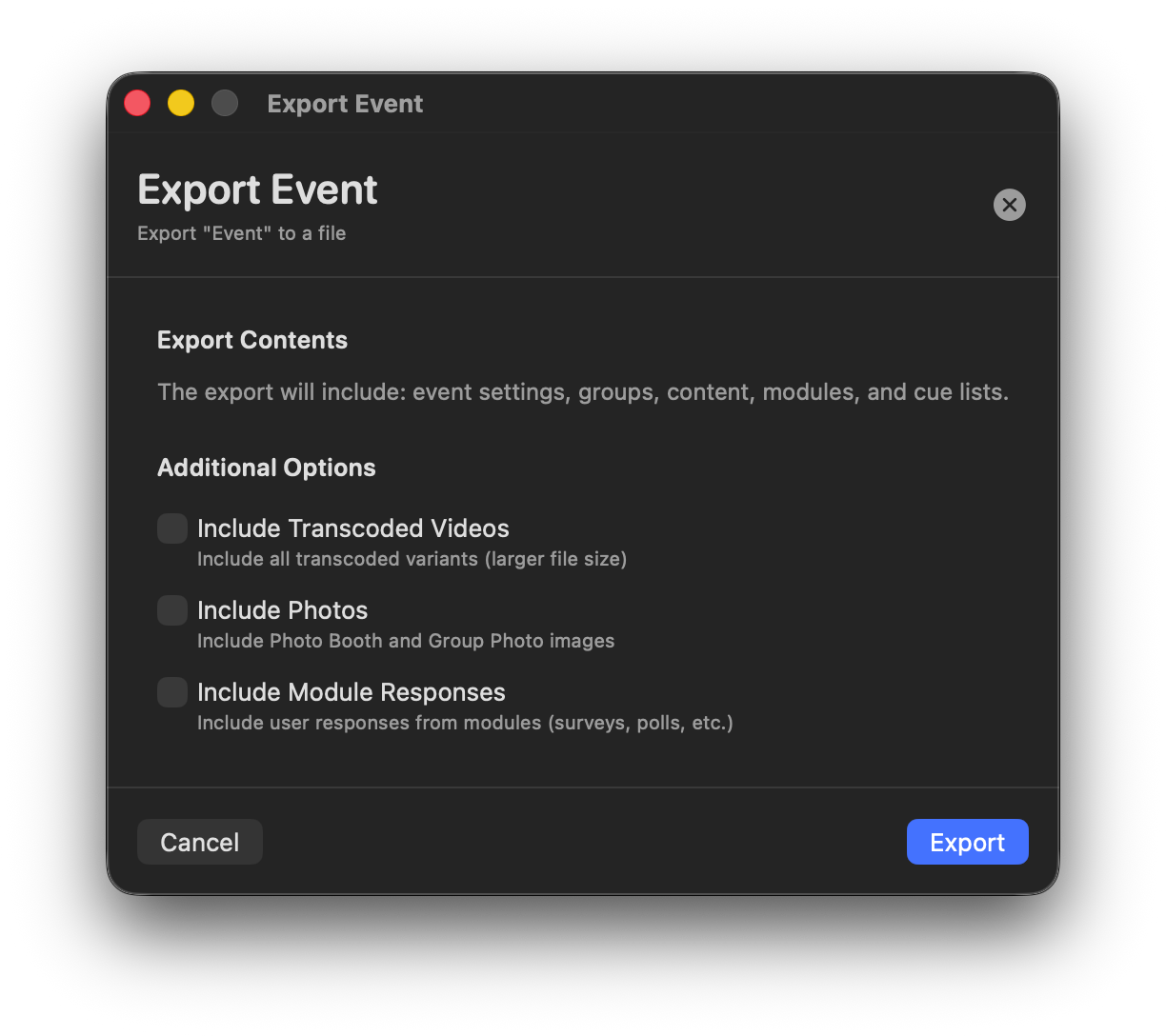
Export optional add-ons:
- Include Transcoded Videos — ships every transcoded variant. Bigger file, faster to restore.
- Include Photos — PhotoBooth and Group Photo output.
- Include Module Responses — survey/poll/Q&A answers from the original run.
Import
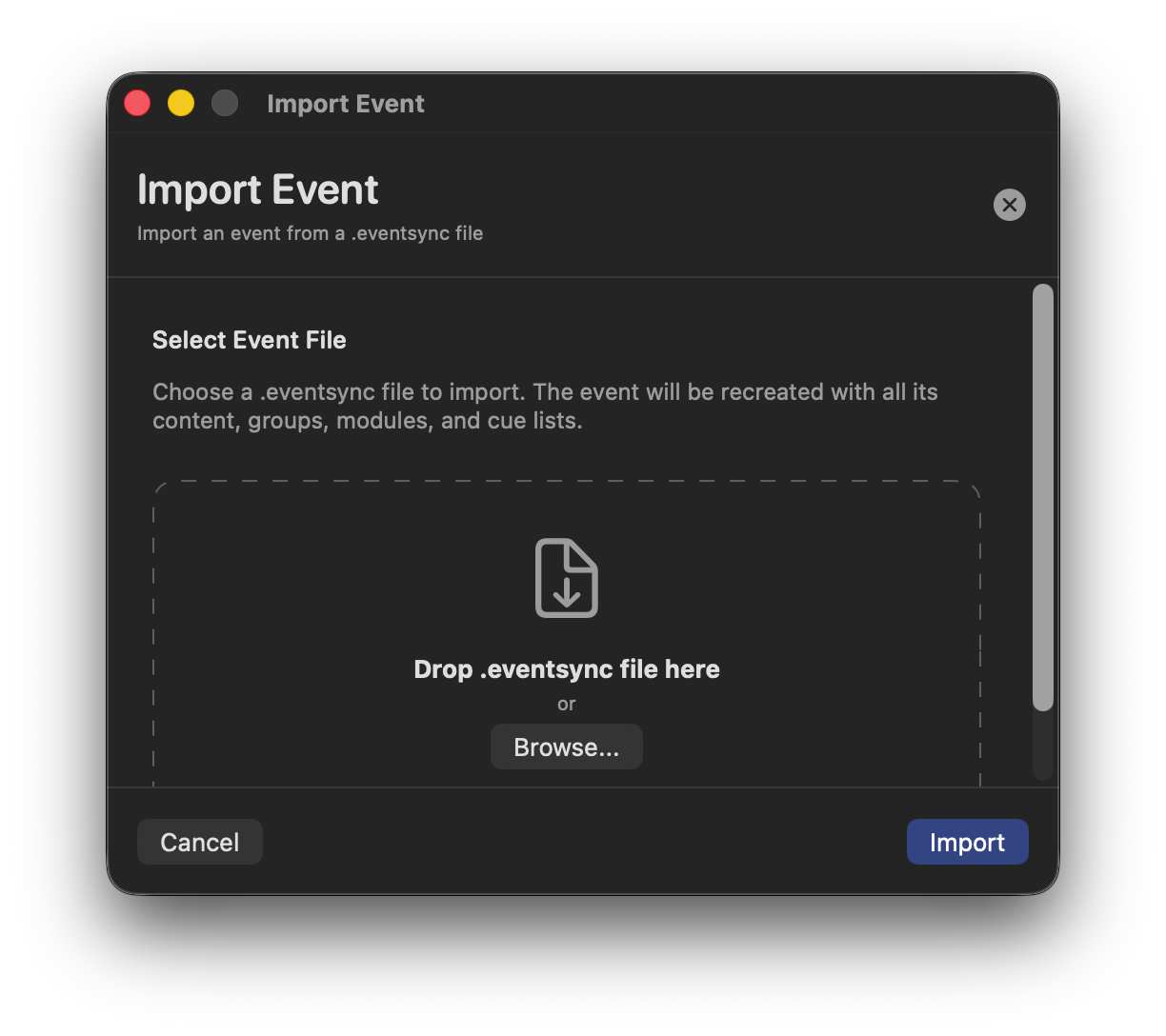
Drop a .eventsync file onto the Import page (or click Browse). The new event is created on the server with all content, groups, modules and cues intact.
💡 Best Practice — always back up before a show
Export the event after rehearsal (include transcodes) and keep the file somewhere off-box. If anything goes sideways — corrupted DB, Factory Reset required, migration to a spare Mac — you're 30 seconds from being back.
Factory Reset
Covered in full on the Server Applications page. In short: Factory Reset wipes every piece of event data from the server; licenses survive; logs don't. Export first. Always.
Troubleshooting
Common things to try first
- Are you on the event LAN? A device on venue Wi-Fi will never find the server.
- Is Bonjour/mDNS allowed? Check the switch/AP settings — no client isolation, no mDNS filtering.
- Is the server interface right? The server UI shows the interface and IP; compare to what the device sees.
- Does the device need the PIN? If Require PIN for iPad clients is on, make sure the crew knows it.
- Is the Licenses count healthy? A 0/N reading means you need to allocate from the pool.
- Has the server been running long? Restart the Launcher if anything feels off — it's a 30-second fix during a break.
Collecting logs
Log files live under ~/Library/Application Support/EventSync/Logs/ in per-component subfolders (Server/, Dashboard/, LiveSync/, LiveSyncDashboard/). Files are hourly and auto-delete after 6 hours — so capture them quickly.
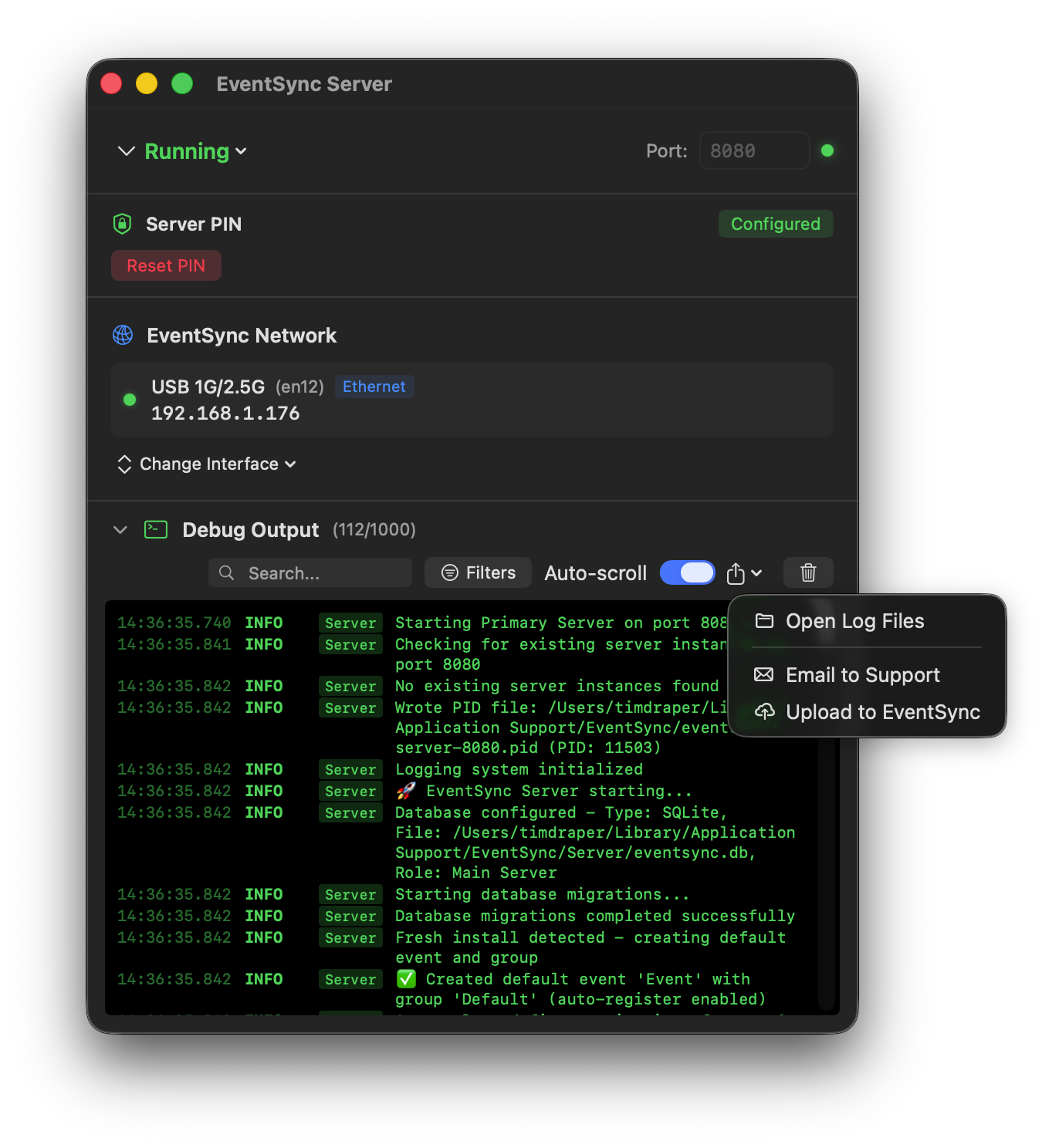
- Open Log Files — opens the folder in Finder.
- Email to Support — opens an email template pre-filled for [email protected].
- Upload to EventSync — direct upload with your description of the issue.
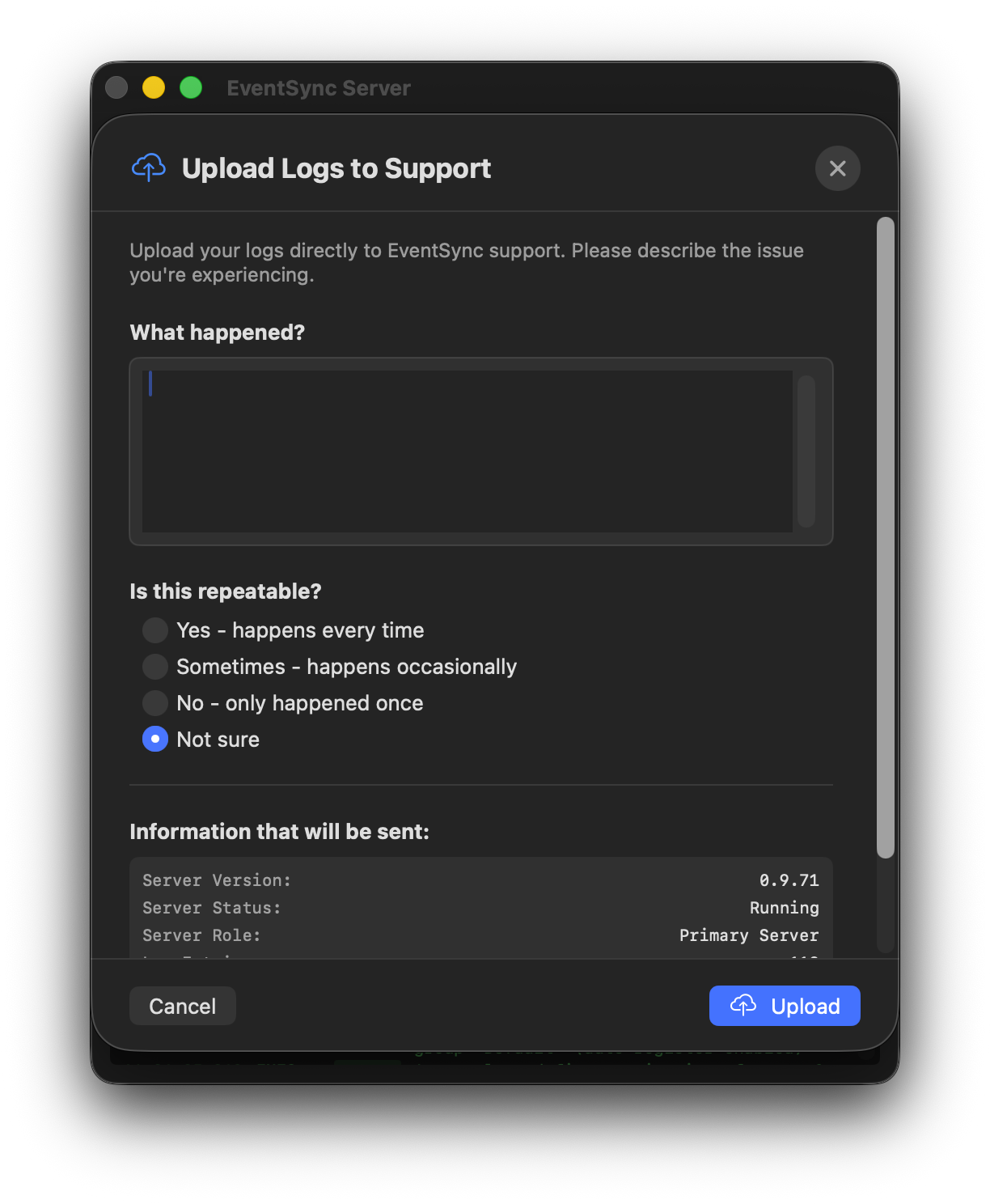
Client log reporting
If a device is misbehaving, turn on Client Log Reporting for that specific group at Debug level — you'll get the device's own view of the problem in the server log alongside events from the server itself.
Contact
Primary contact: [email protected]. Log upload endpoint is https://api.eventsync.co.uk/support/logs (the "Upload to EventSync" action uses this automatically).