
Curate — Content, Distribution, Modules & LiveSync
Once the event and groups are set up, curate the material. This page covers the Content Library, Distribution, the built-in and custom Modules, and LiveSync live video.
Content Library
The Content page is your media library for the event — videos and images that a cue can point at.
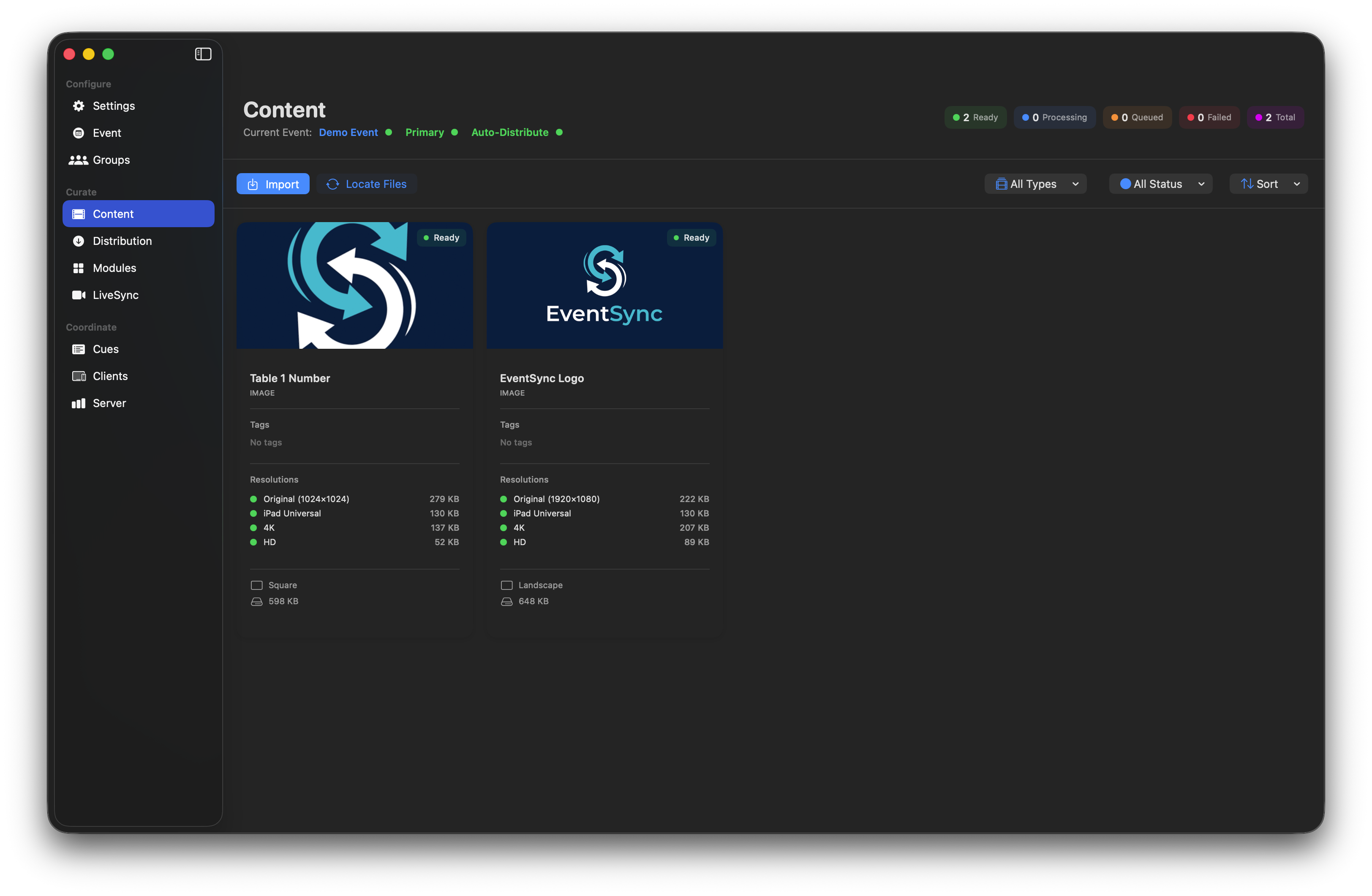
The library lists every asset with its transcode status and per-resolution file sizes.
Importing content
Click Import to add media.
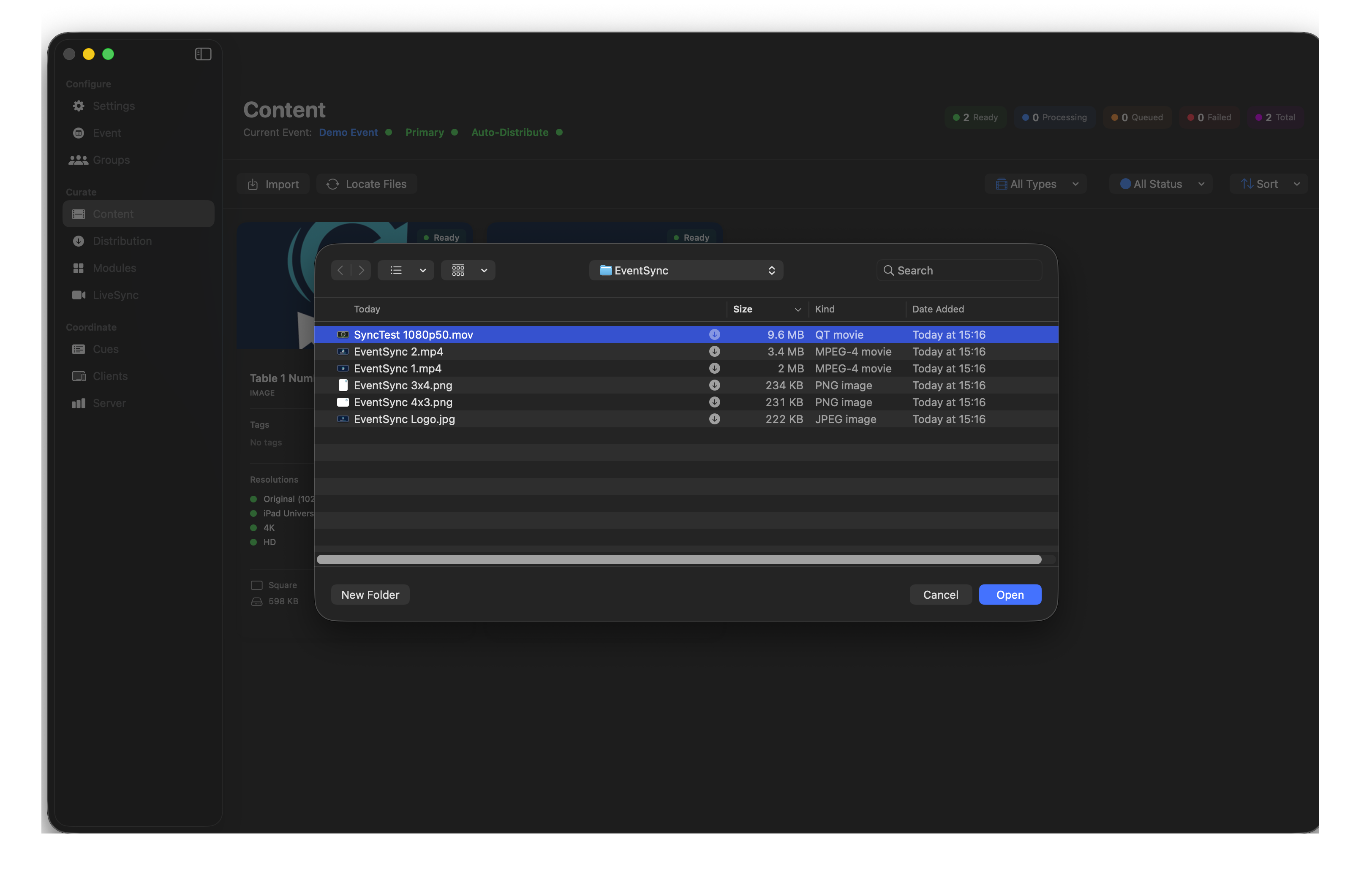
EventSync accepts a wide range of video and image formats. Typical inputs:
- Video — MP4, MOV, MKV, M4V, AVI.
- Image — PNG, JPG, HEIC.
Frame rate and colour are preserved during transcode — only resolution and bitrate change between variants (see Transcoding).
On import:
- The original file is copied into the event folder — the event stays self-contained, so moving the Mac between shows doesn't break anything.
- Transcoded variants are generated alongside the original.
Locate Files is the recovery tool if the event folder has been moved — point it at the new location and it reconnects the asset.
Transcoding
Every video and image can be transcoded into additional resolutions, so the right variant is delivered to the right device. You decide per asset which variants to create.
When to skip transcoding
If your content has already been produced specifically for the target devices — correct resolution, frame rate, bitrate and container — leave it as Original only. EventSync will distribute that one file as-is. No transcoding work, no extra disk space, nothing to second-guess.
When to enable transcoding
If content is arriving in mixed resolutions and formats (client-supplied clips, speaker decks exported as video, camera rushes), enable the variants you're likely to need. Then:
- Auto-Distribute automatically picks the closest-matching resolution for each receiving device.
- Manual Distribute lets you override and push a specific variant to a specific group.
Available variants
- Original — always kept. The source you imported.
- Tablet Universal — optimised for iPad and Android tablet models.
- HD — 1920 × 1080 (general purpose, smaller footprint).
- 4K — 3840 × 2160 (driving large displays via a Mac).
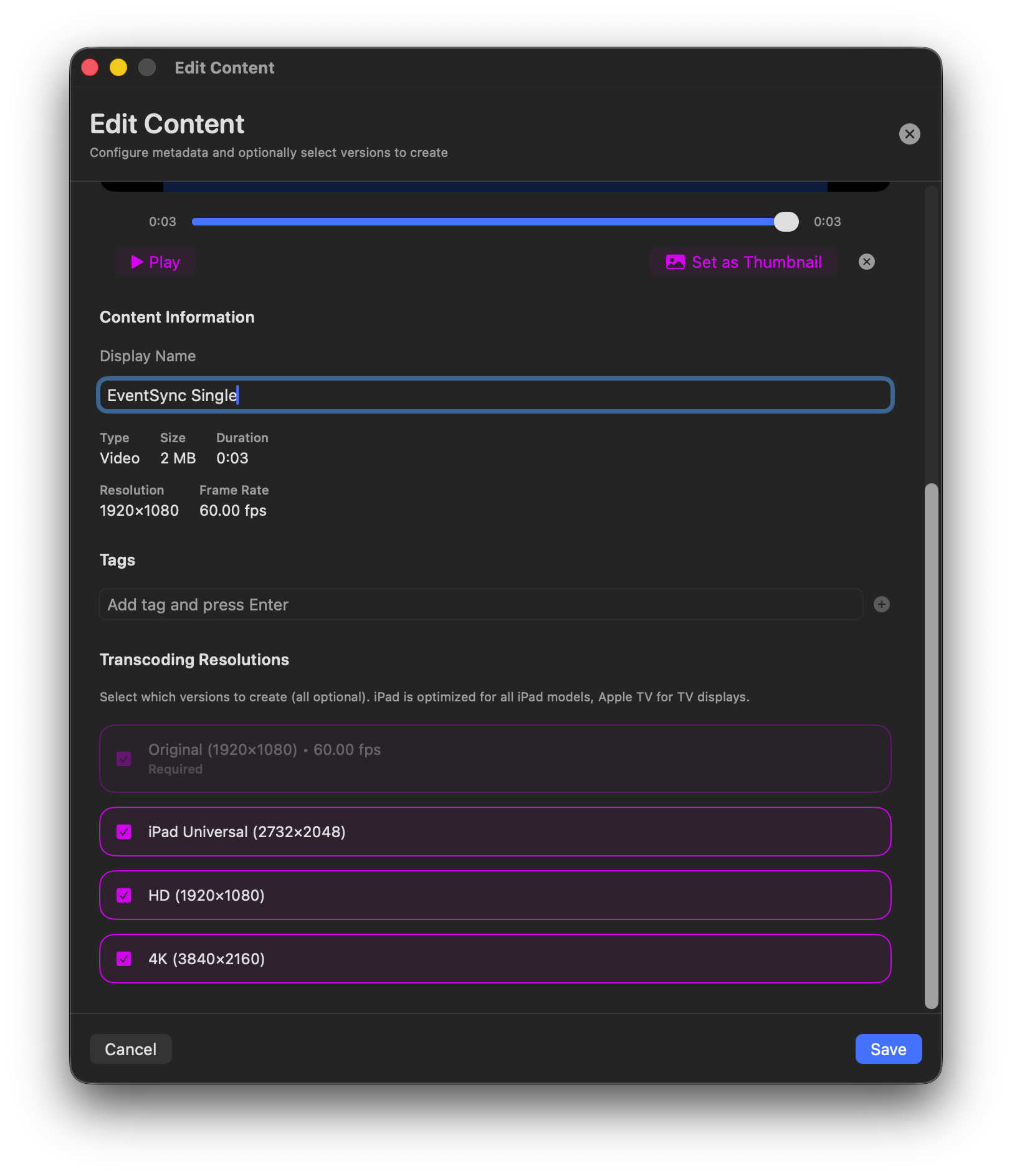
Editing content
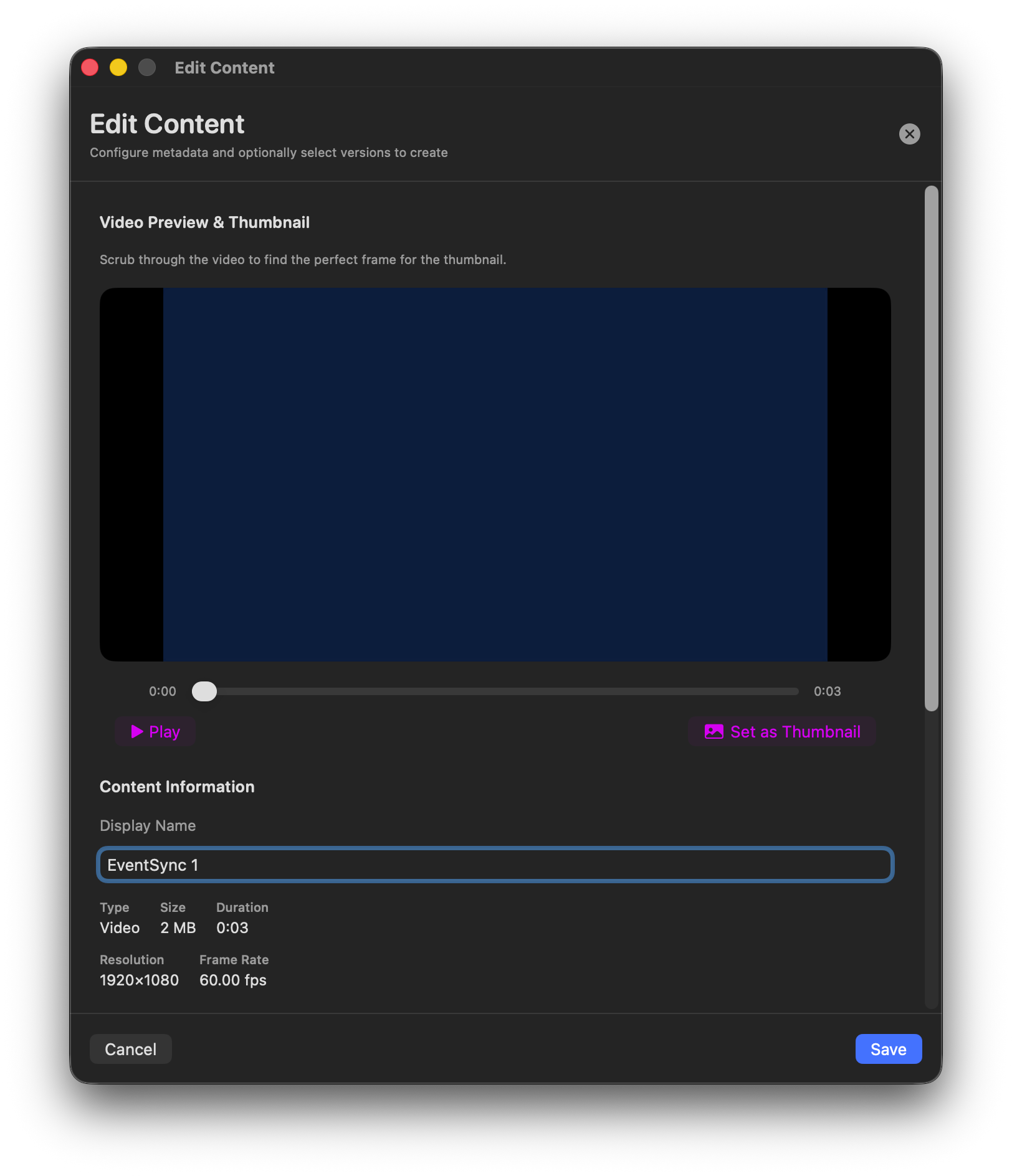
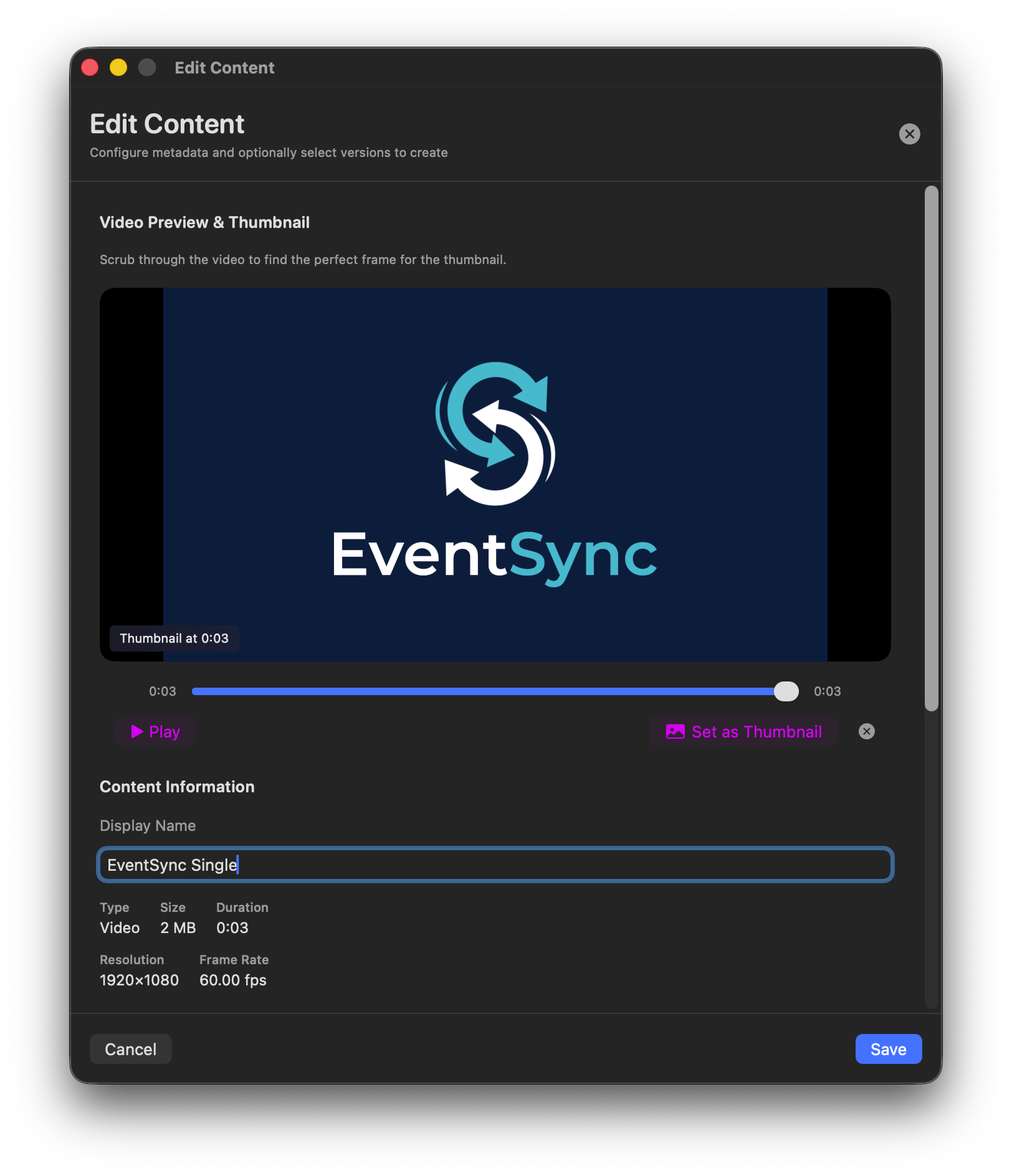
- Video preview & Set as Thumbnail — scrub through the video and pick the thumbnail frame.
- Display Name — rename for the cue picker.
- Tags — freeform tags for searching the library.
- Transcoding Resolutions — tick the variants to create.
Simultaneous transcodes
Under Settings, the Simultaneous Transcodes slider (1–10) controls how many jobs run at once. Higher values finish faster but burn more CPU. Keep it at default on an event machine — you want headroom for the show.
Distribution
Distribution pushes content from the server to connected devices so it can play. Assets must be distributed before a cue can use them.
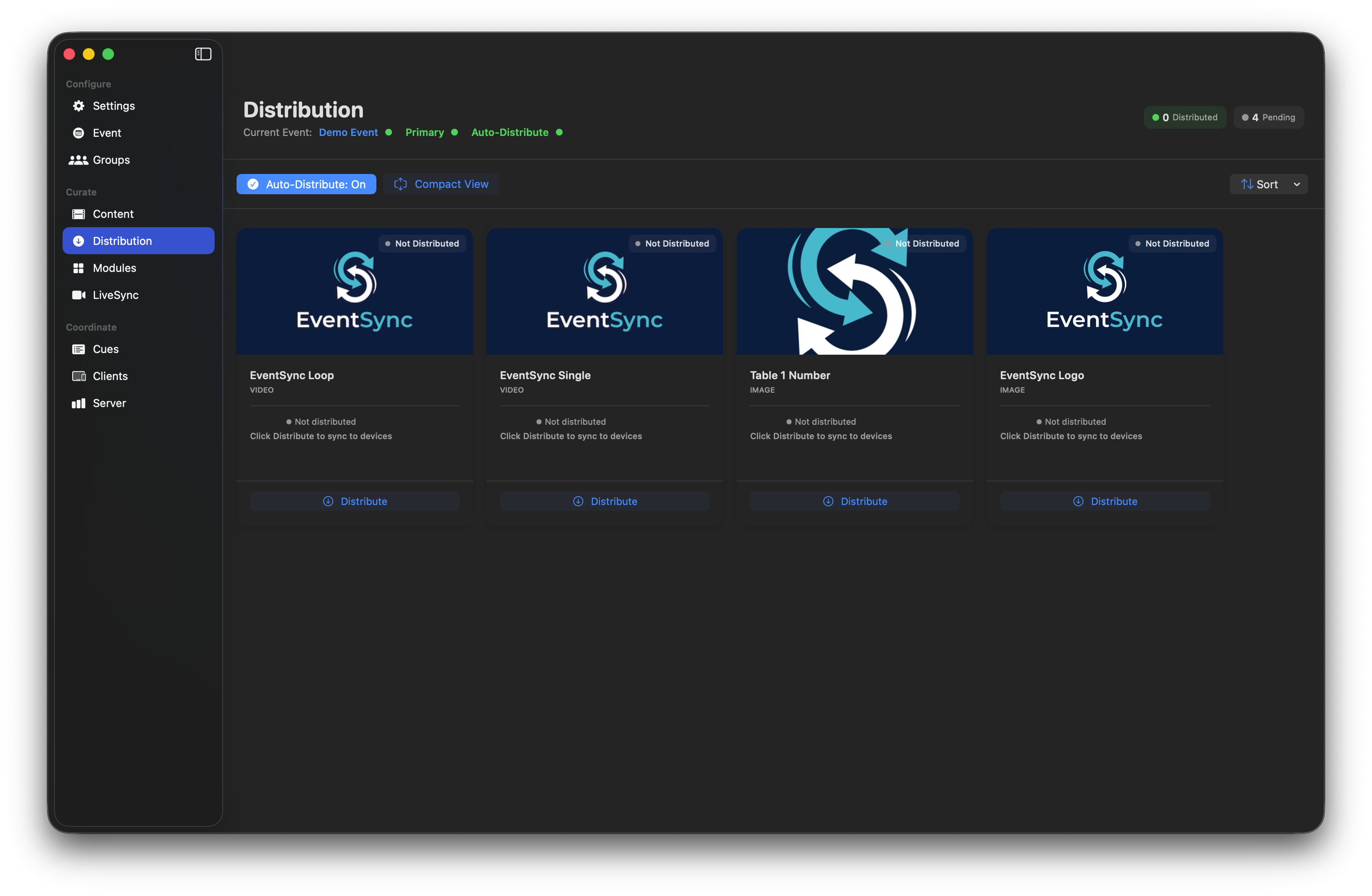
Auto-Distribute (recommended)
With Auto-Distribute on (the default), the server sends the right transcoded version of every asset to every connected device automatically. By the time you're ready to trigger cues, every device has every asset cached. This is what you want for 95 % of shows.
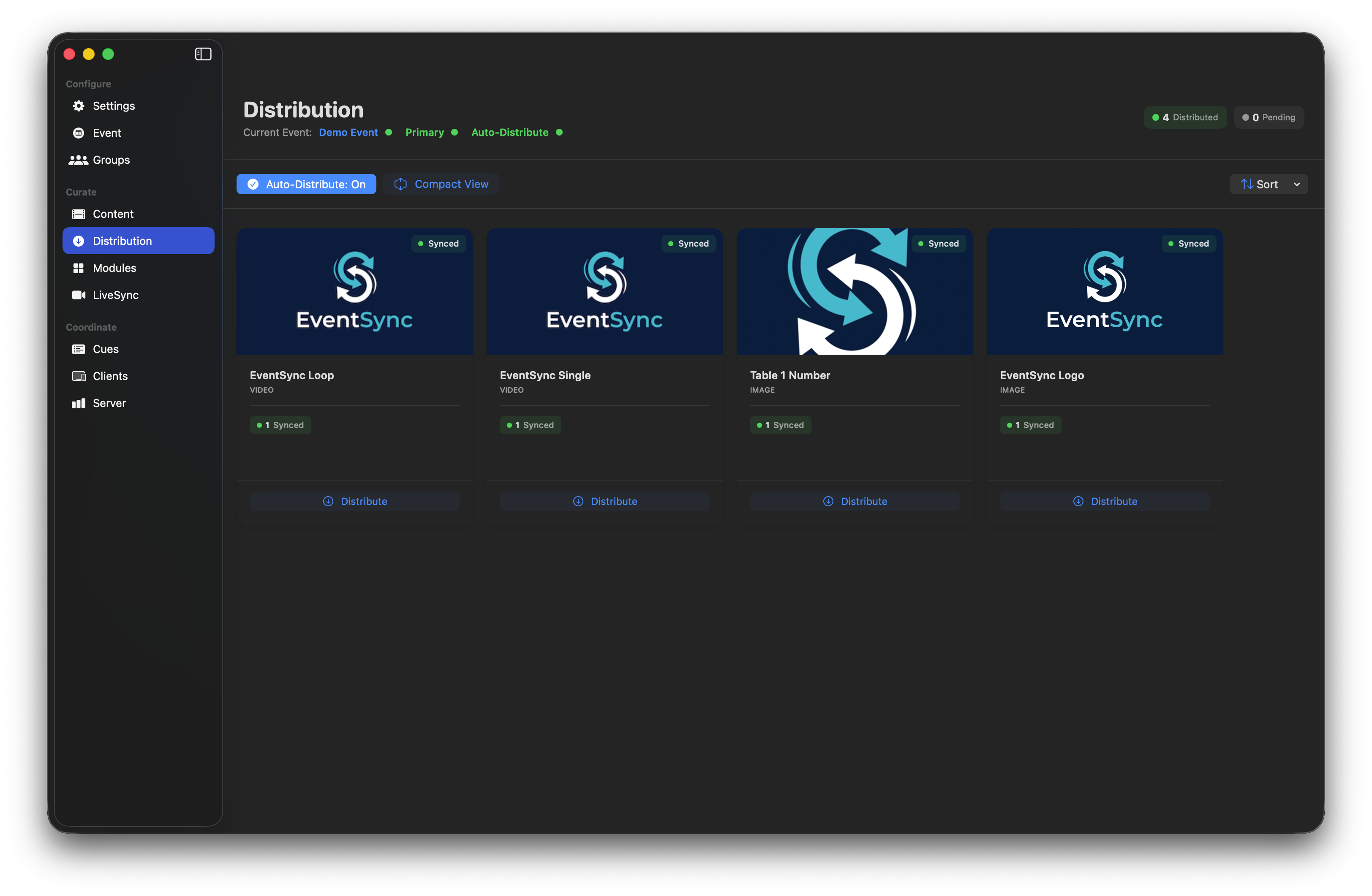
Manual distribution
Turn Auto-Distribute off to control distribution explicitly — useful when bandwidth is tight or when different groups need different variants.
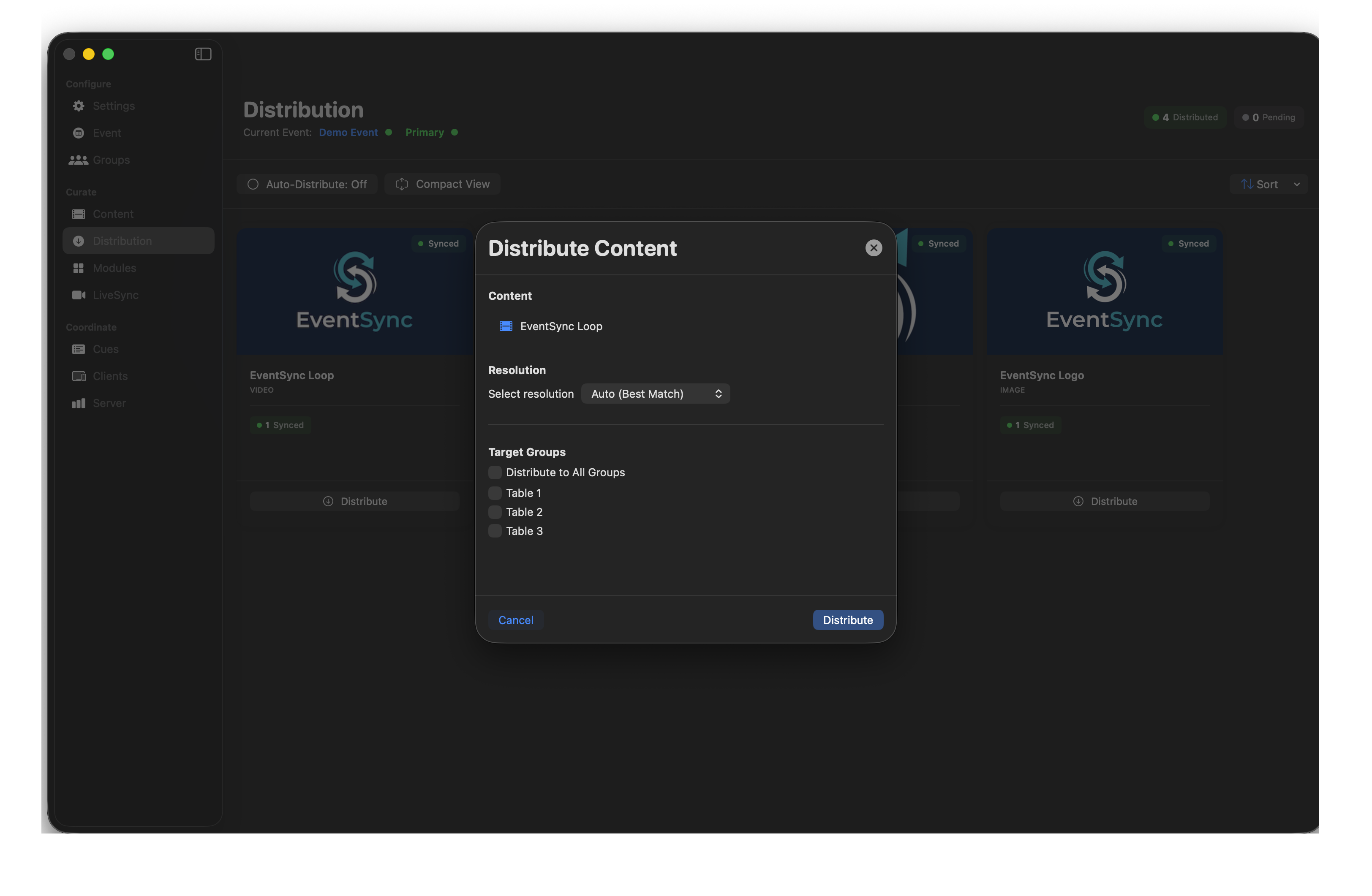
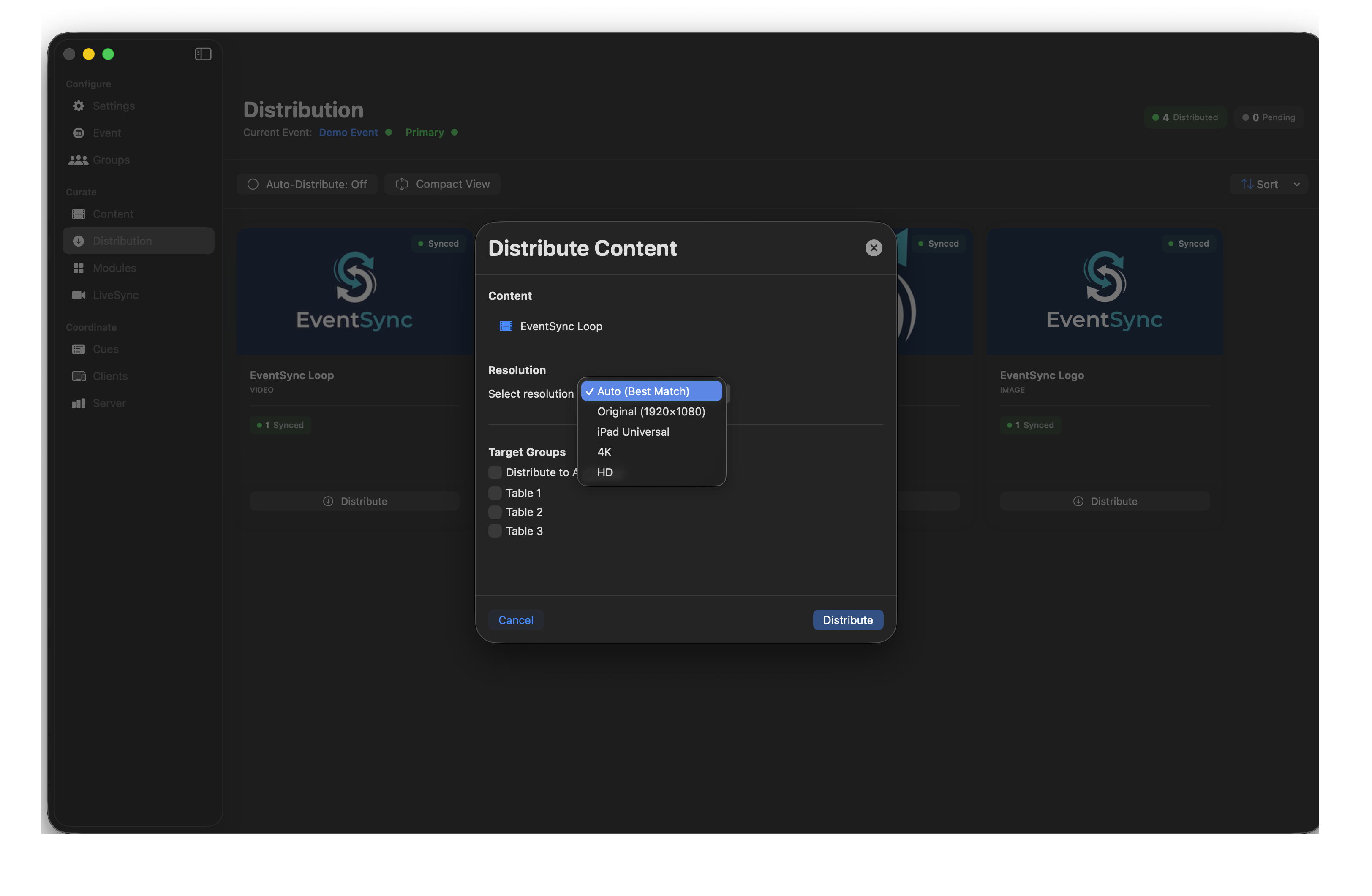
- Resolution — Auto (Best Match), Original, Tablet Universal, HD or 4K.
- Target Groups — All Groups or specific ones.
💡 Best Practice — pre-load, then assign
For large events, turn on Auto-Distribute and let devices pre-cache everything as they connect, before group assignment. On show day you can then place devices physically and assign groups based on position without waiting for transfers.
Concurrent devices
Under Settings, Concurrent Devices (1–100) controls how many devices the server distributes to in parallel. On strong event Wi-Fi you can push this up; on weaker or more congested Wi-Fi, keep it lower. The goal is to keep distribution fast without saturating your APs.
Modules — overview
Modules are interactive features that sit alongside or replace video playback. EventSync ships with a set of built-in modules and also supports fully custom HTML5 modules — see Module reference in Advanced for the deep dive on each one.
Module views — Index / Control / Results
Every module has up to three views that can be sent to different groups:
- Index — guest-facing interactive view (voting, photo taking, answering).
- Control — operator/moderator view, used from the Dashboard or a backstage device.
- Results — outcome display for the room (poll charts, photo gallery, word cloud).
💡 Example — PhotoBooth
Index → "PhotoBooth iPad" group (the actual booth)
Control → "Operator" group (backstage moderation)
Results → "LED Wall" group (display photos to the room)
Same module, three different jobs, three different groups — from one cue.
Built-in modules are templates — you can't delete them. To run two of the same module simultaneously (two different surveys, two photo booths), Duplicate one. Duplicates are independent and can be deleted.
Custom HTML5 modules work to the same three-view pattern but are authored by you. Full developer reference (JavaScript API, Proxied vs Direct URL) is on the Custom modules page under Advanced.
Built-in modules
| Module | Purpose |
|---|---|
| Auction | Live bidding with real-time updates. |
| Countdown Timer | Synchronised countdown with colour triggers. |
| Group Photo | Coordinated photo capture across a group. |
| Guest List | Attendee check-in. |
| Happy Face Survey | Three-option emoji feedback. |
| Leaderboard | Scores and rankings display. |
| PhotoBooth | Self-service photo capture and review. |
| Polling | Audience voting with live results. |
| Q&A | Audience questions with moderation. |
| Raise Your Hand | Audience attention queue. |
| Word Cloud | Aggregated text responses. |
LiveSync — live video streaming
LiveSync streams live video to devices with roughly 250 ms latency on a well-built network. Use it for presentation slides, IMAG, accessibility feeds, or any real-time camera source. Up to four simultaneous streams are supported.
When LiveSync isn't connected
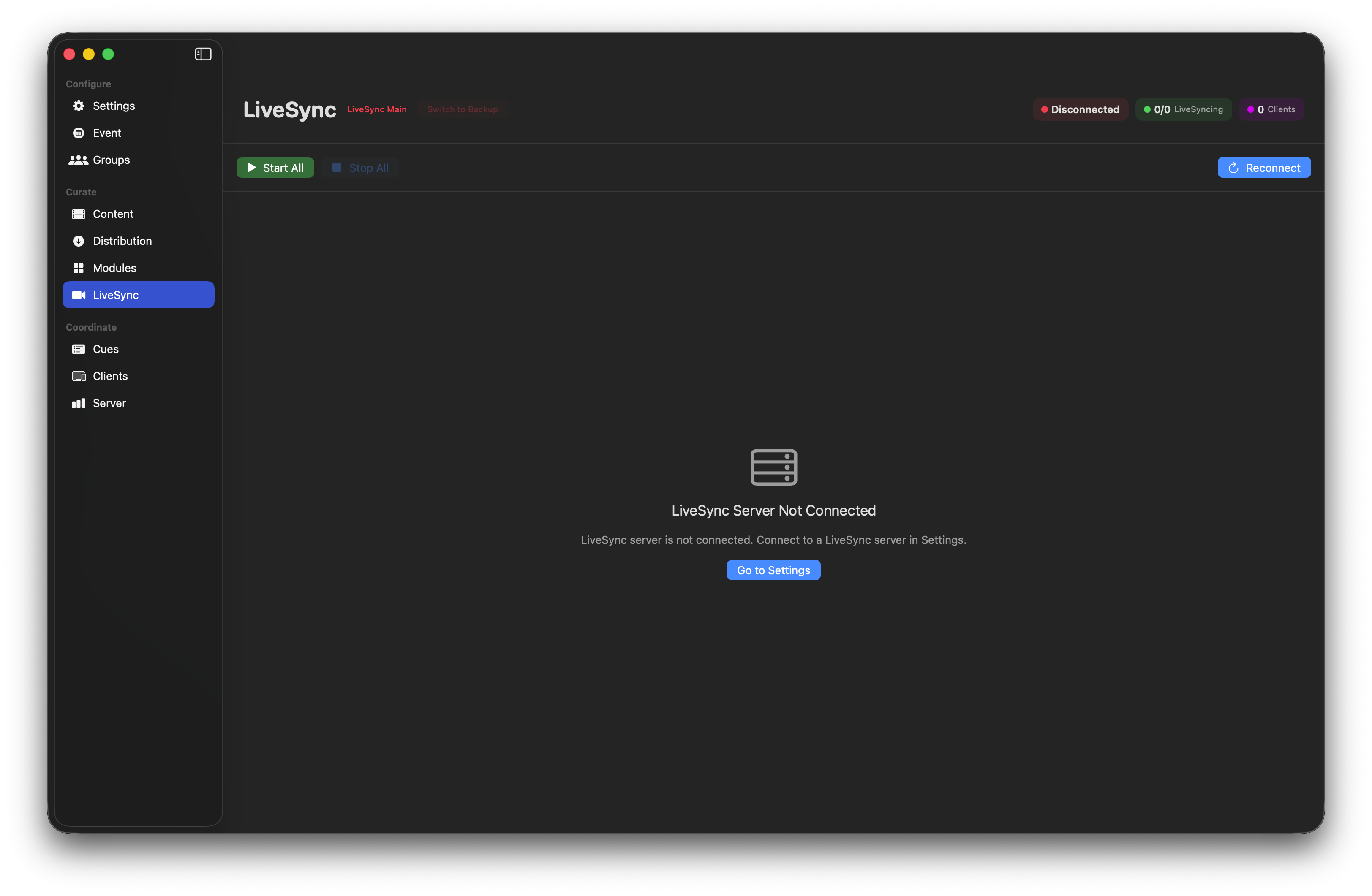
If you see this screen, you haven't linked the Dashboard to a LiveSync Server yet. See Adding the LiveSync connection.
LiveSync page layout
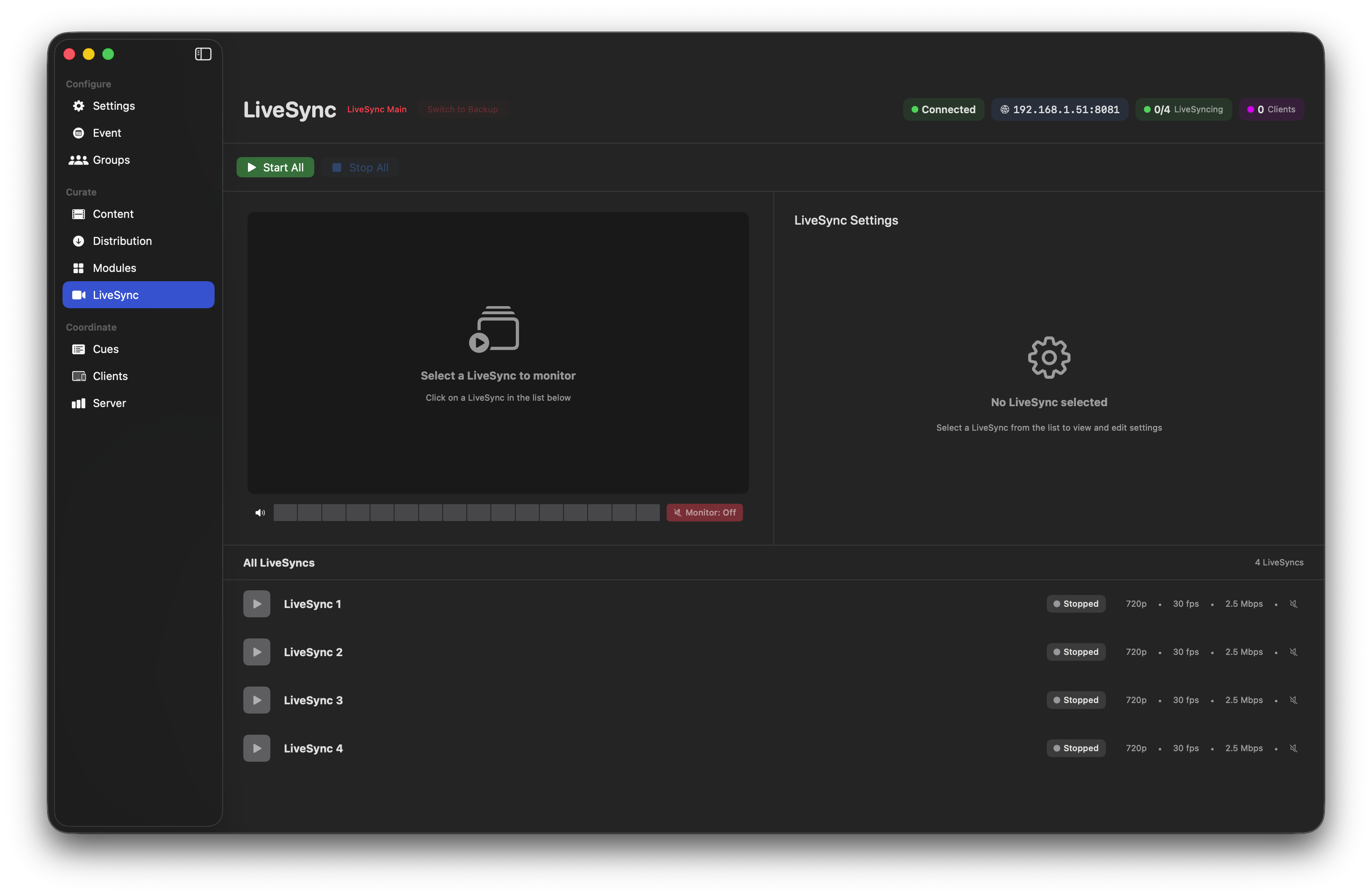
Across the top: connection status, LiveSyncing count (active / total) and Client count. Left panel is the selected stream's preview; right panel is its settings. Below, a list of all configured streams (up to four).
Configuring a stream
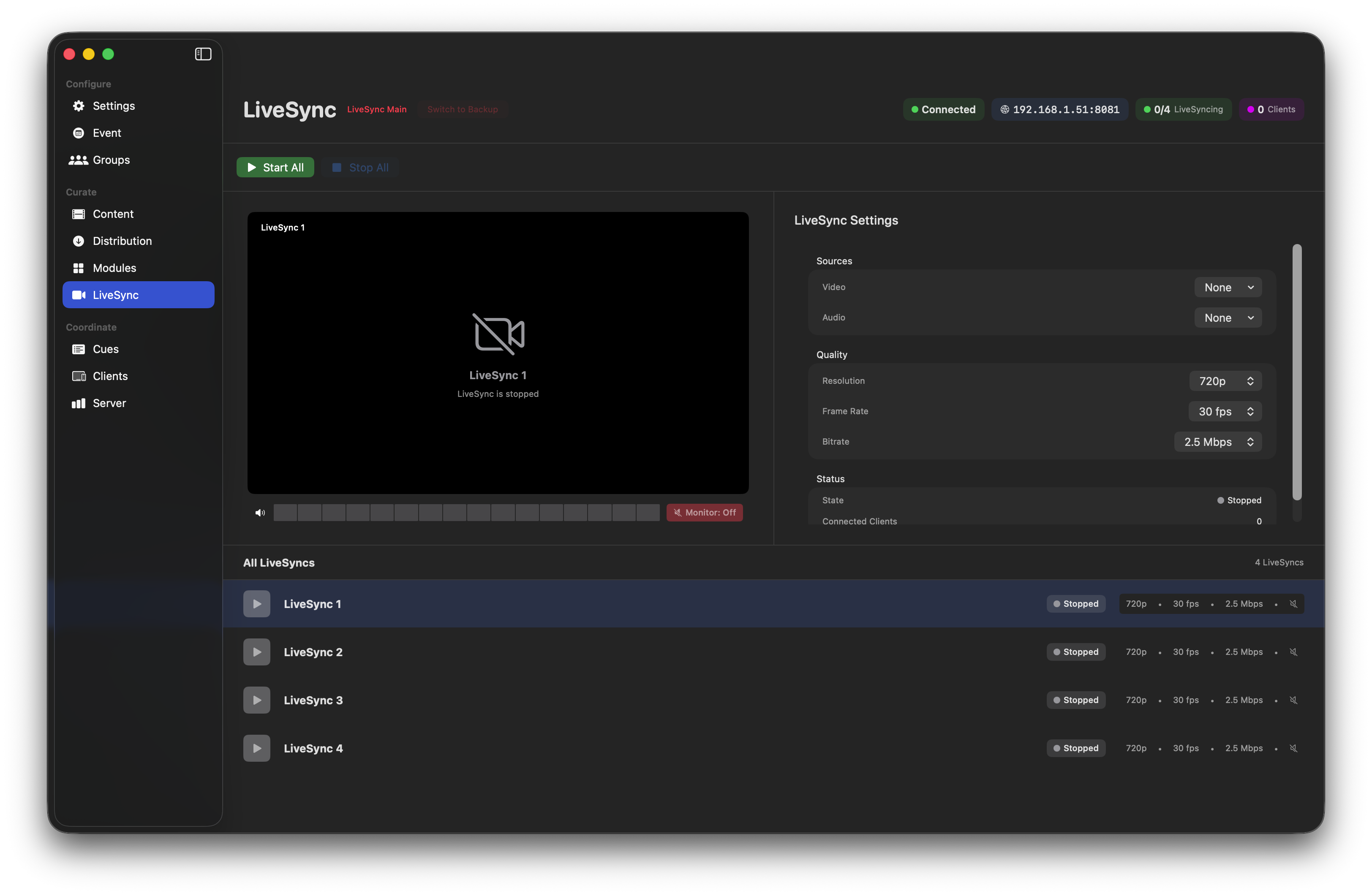
Sources — pick a Video source and an Audio source for this stream.
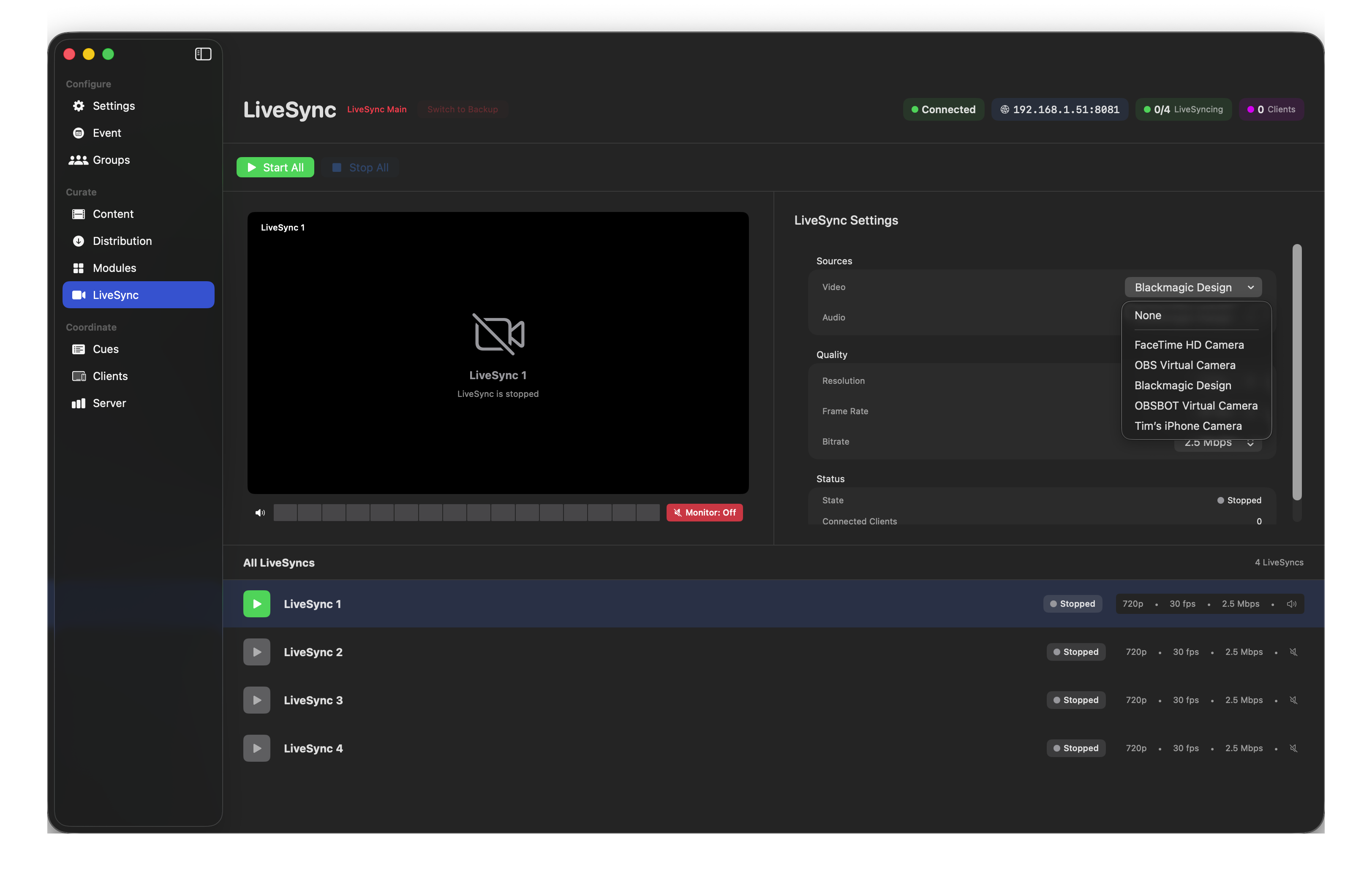
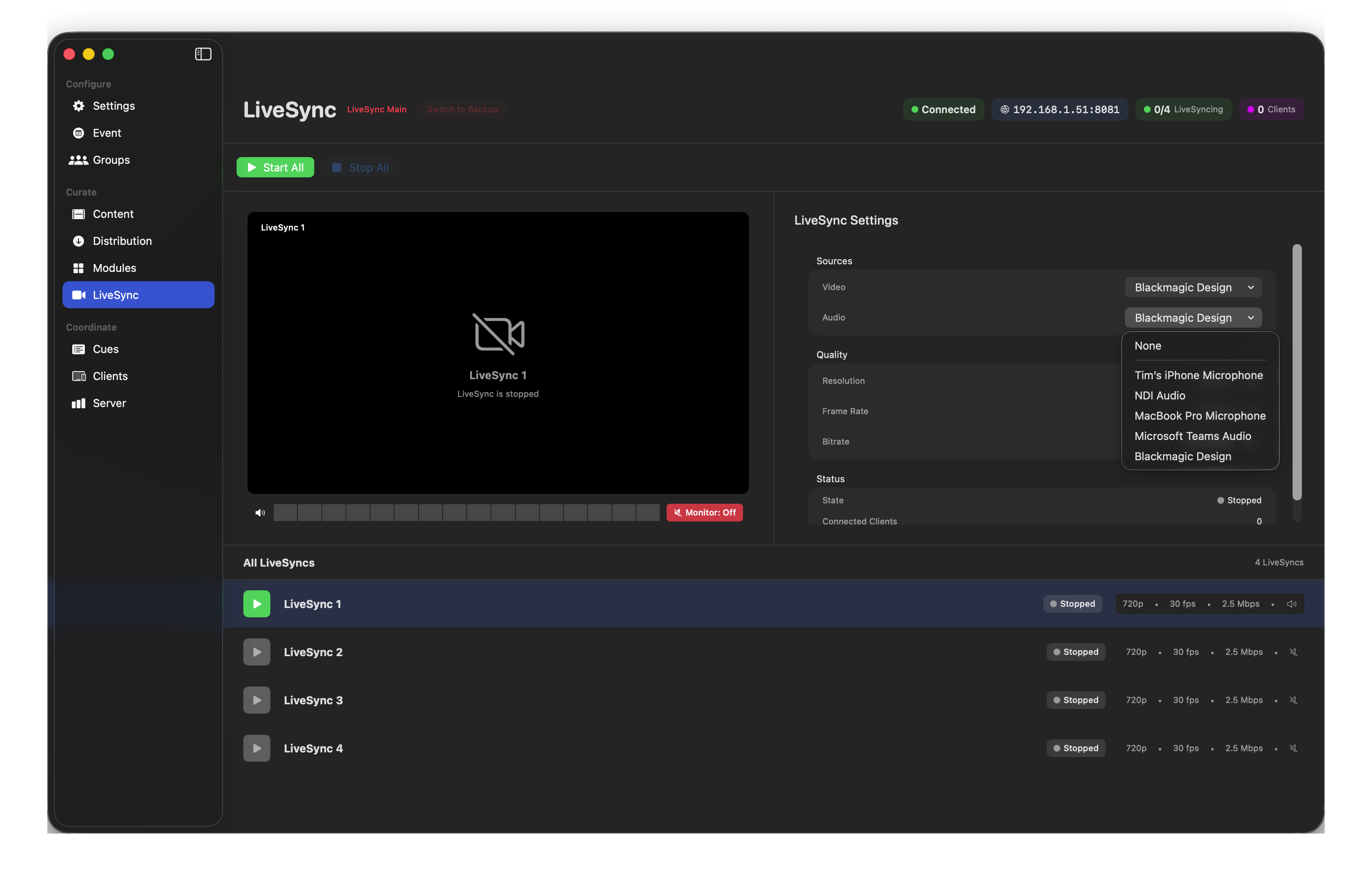
Any video or audio input the Mac can see: HDMI capture cards (Magewell, Blackmagic, Elgato), UVC webcams, iPhone via Continuity Camera, software virtual cameras (OBS).
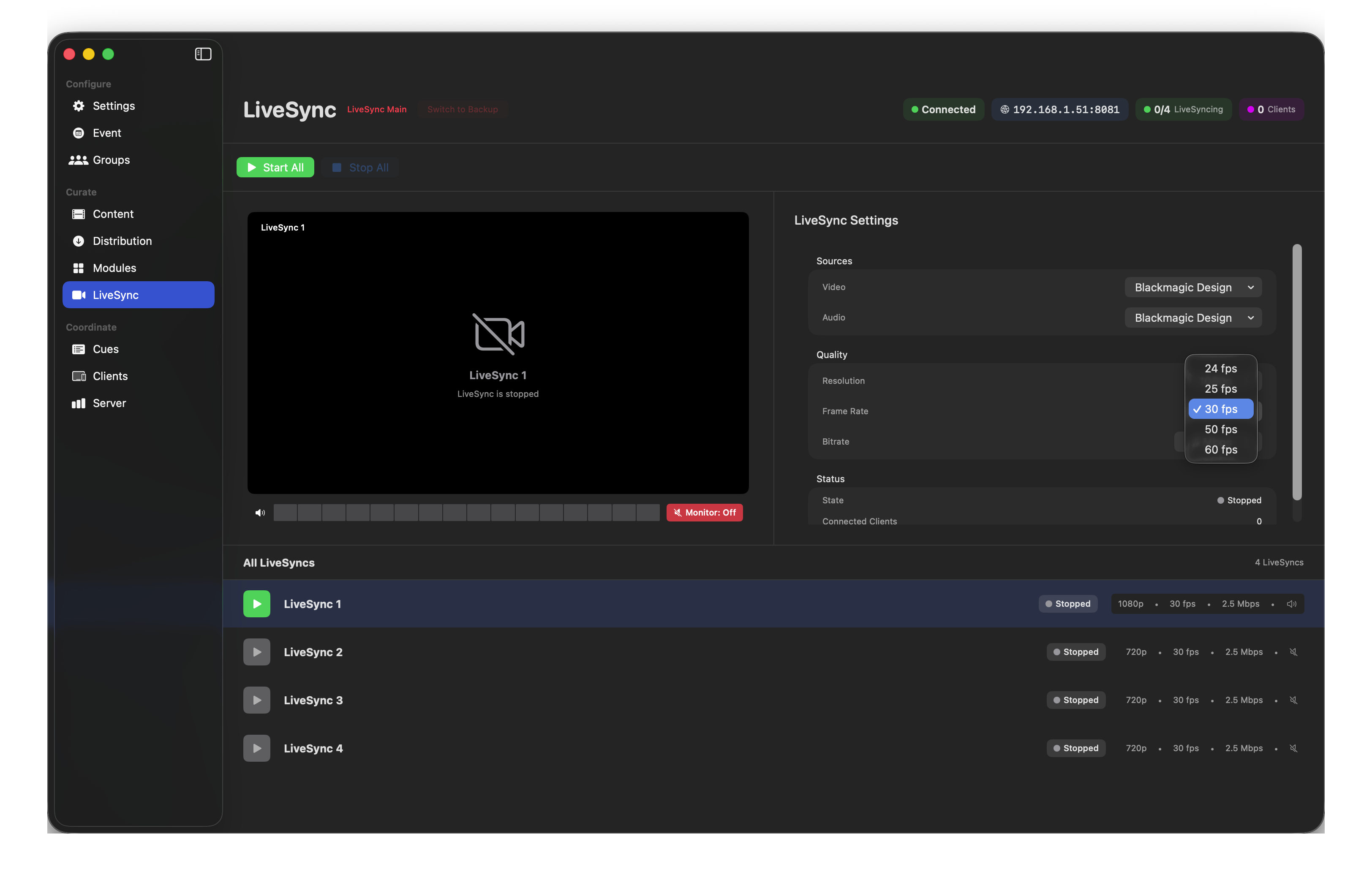
Quality — Resolution, Frame Rate and Bitrate.
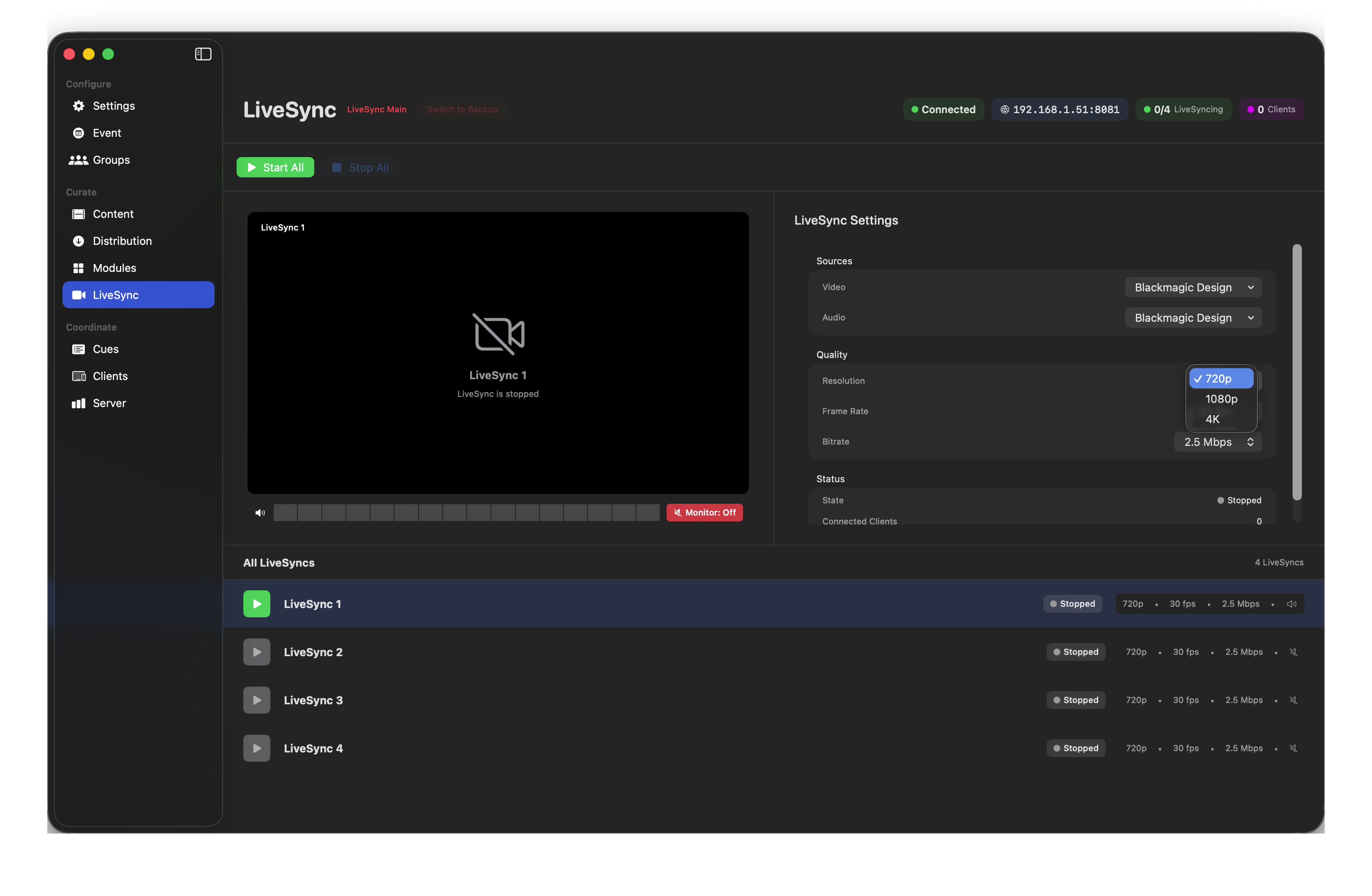
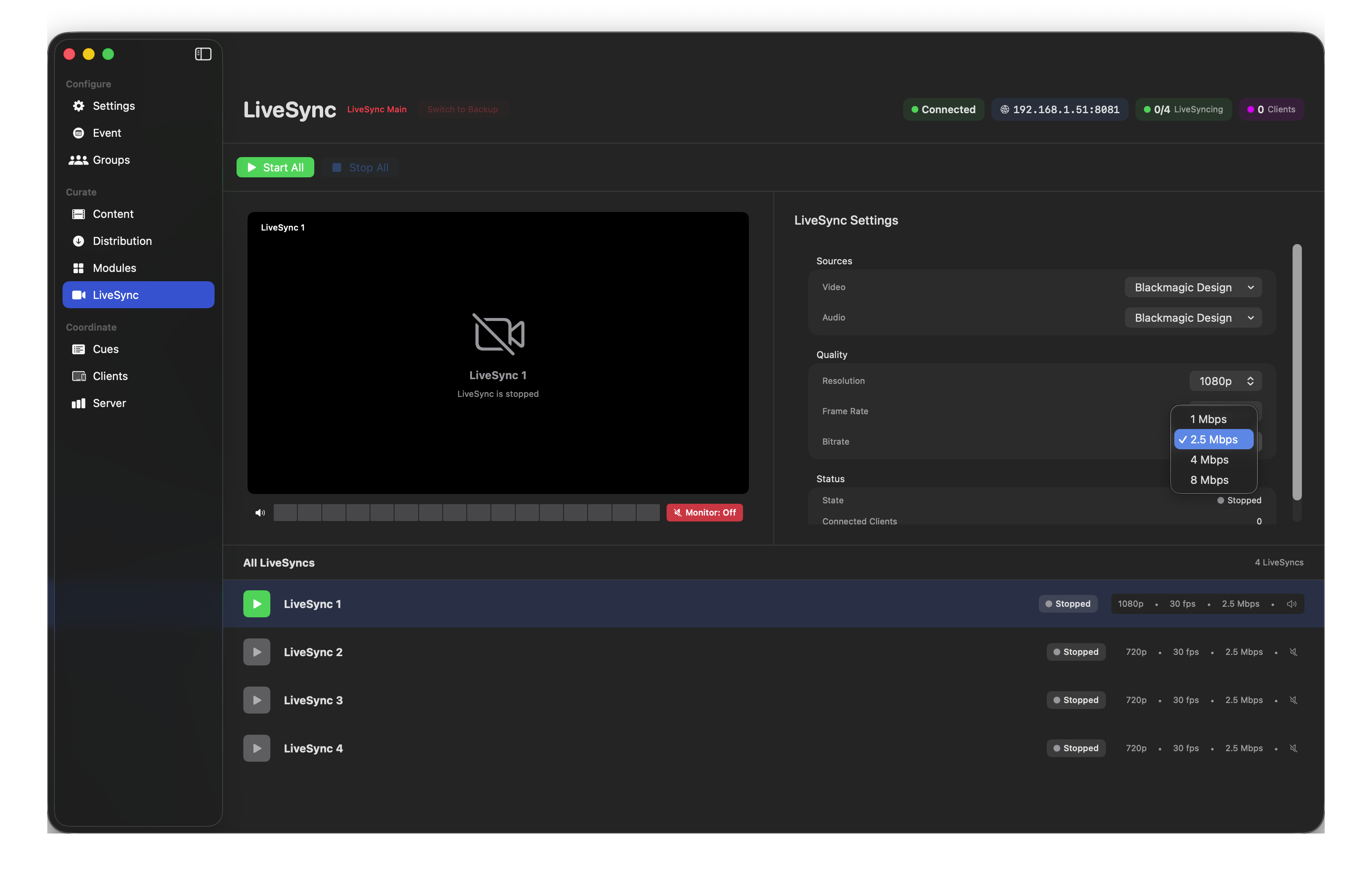
- Resolution — 720p for dense rooms with many receivers, 1080p for most events, 4K for very specific use cases.
- Frame Rate — 30 fps for slides, 50/60 fps for smooth motion (live camera on stage).
- Bitrate — 2.5–8 Mbps. Higher = better, but × number of receivers = your AP load.
Preview and control
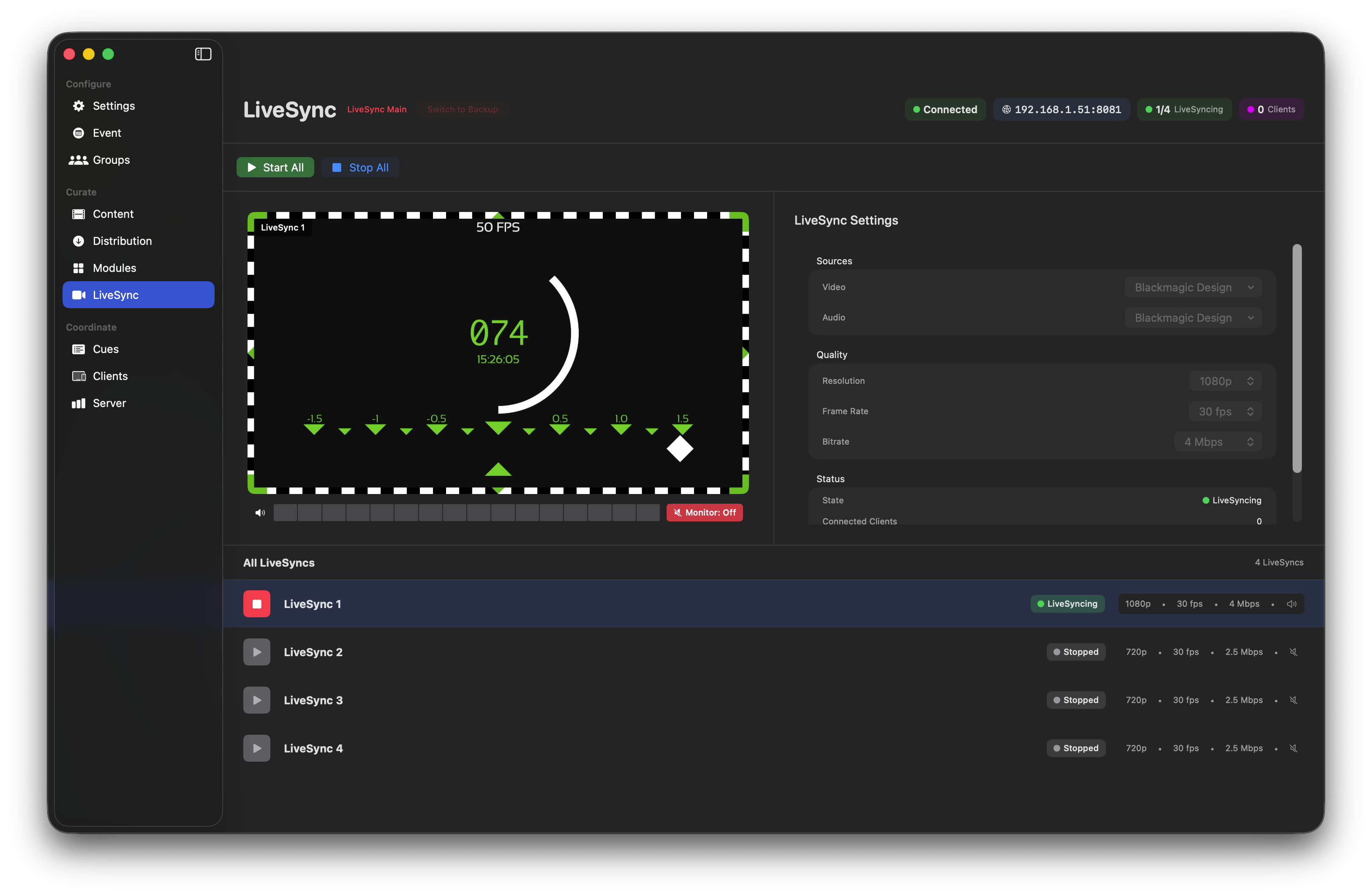
- Start All / Stop All — mass controls at the top.
- Play / Stop per stream — control individual streams from the list.
- Monitor: On/Off — toggles local audio monitoring for the selected stream. The video preview is always on for whichever LiveSync you have selected.
Multiple simultaneous feeds
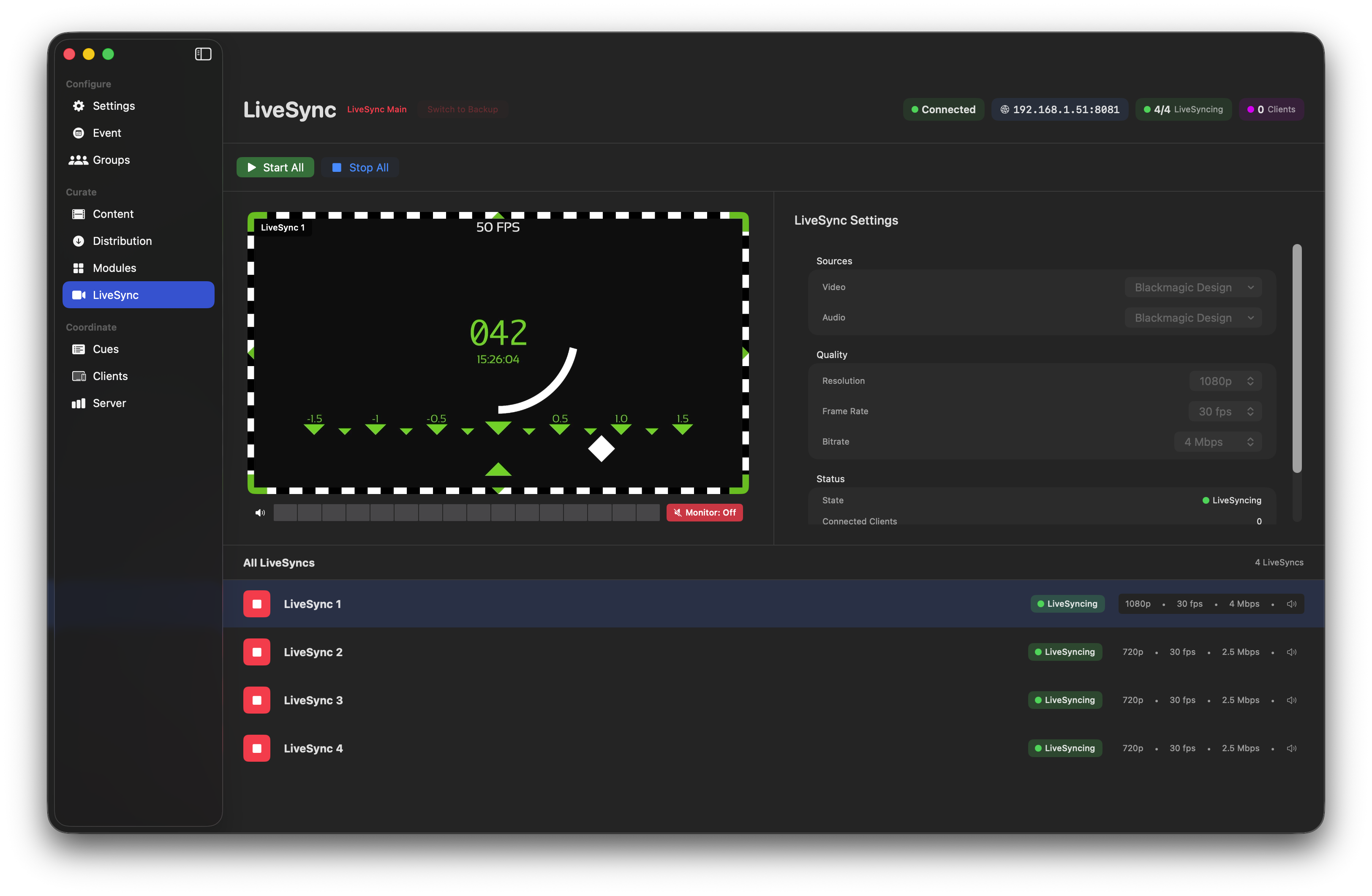
All four LiveSync streams can run at once with different sources — e.g. Feed 1 for presenter camera, Feed 2 for OBS (slides), Feed 3 for a stage-wide shot, Feed 4 for a BSL interpreter. Cues then route each feed to different groups in the room.
Use cases
- Presentation slides — stream PowerPoint/Keynote to every table device. Enable pinch-to-zoom on the LiveSync cue so guests can zoom into dense financial slides.
- Restricted-view seating — send a stage feed to seats with obstructed sightlines.
- Accessibility — dedicated BSL interpreter feed, or subtitled audio to hearing-impaired guests' devices; they can pair a Bluetooth hearing aid to the device for direct audio.
- Live demos — close-up camera shot of a product demo or cooking hob, synced to every audience device.
💡 Typical setup
Capture HDMI from the presentation laptop into a Blackmagic or Magewell capture card connected to the Mac's USB-C. Pick that source in LiveSync 1, 1080p @ 30 fps, 4 Mbps. Fire a LiveSync cue targeting the Tables group and the stream is on every device in the room.
Scaling with relays
A single Mac can serve roughly 125–250 LiveSync clients at once, depending on hardware (a powerful Mac Studio or Mac Pro at the top end). For deployments beyond that, add LiveSync Relays — extra Macs dedicated to fanning the stream out to more clients.
- Budget around 125 clients per relay, with headroom for peaks.
- Relays pull the video stream from whichever LiveSync Server is currently ingesting — Primary or Backup.
- Relays coordinate automatically to share load across the connected clients.
- Each relay will switch to the Backup feed if commanded to by the LiveSync cue's Switch to backup action.
- A relay just needs a network connection to the EventSync Network — no other configuration.
💡 Plan capacity conservatively
If you're targeting 500 LiveSync clients, plan on 4 relays plus a Primary, not 3. The margin keeps things smooth if one Mac sweats under the load.